Click-to-load videos, rules by region, privacy requests, proof of agreement, insights and accessibility. Pro is built into WP Legal Eagle: your license key switches it on.
Click a chapter to jump to it. Each one takes a few minutes.
A quick tour of the new tabs, the extra pages and the stronger banner.
Pro adds three new tabs and makes everything you already have stronger. Nothing to set up: most of it works the moment Pro is switched on.

| Where | What Pro adds |
|---|---|
| Legal Pages | 10 more pages, like Shipping Policy, Earnings Disclaimer, Children's Privacy and an Impressum. Each page also keeps its old versions. |
| Cookie Banner | Click-to-load cards for YouTube and maps, rules for each part of the world, and a banner in 13 languages. Guide |
| Settings | An "I agree" box at checkout and sign-up, "we updated our policy" notes, deadline emails and AI labels. Guide |
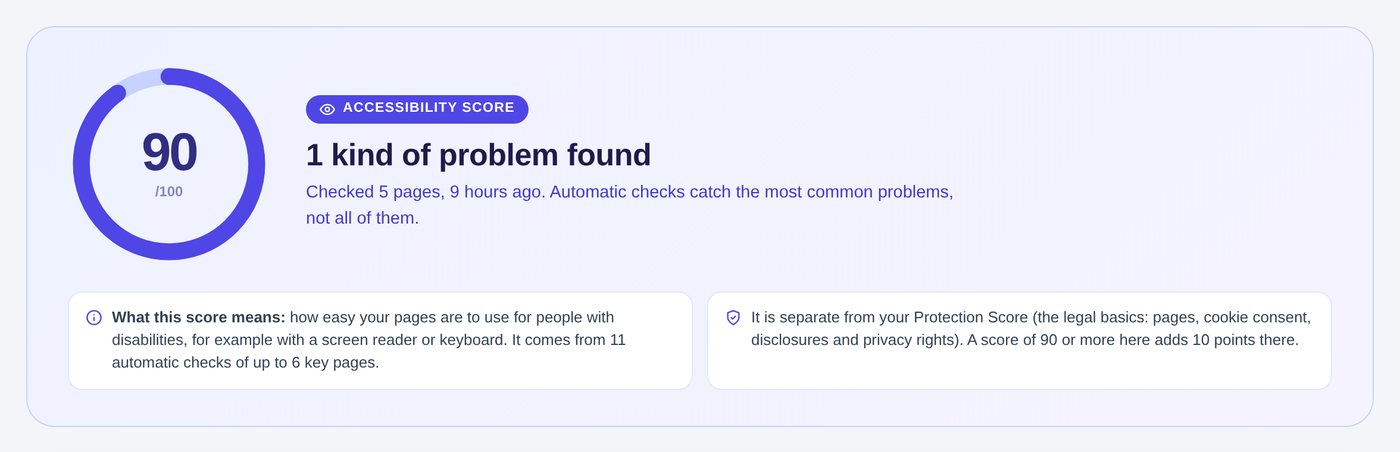
| Home | More checks in your to-do list, and 10 extra points when your Accessibility Score is 90 or more. |
Click Legal Pages. The Pro pages are in the list with the others.
Find the page you need, for example Shipping Policy, and press Create page.
Once a page has changed, its card shows a link like 2 versions. Every version is kept, and visitors can read old versions at the bottom of the page.
Hold YouTube and maps until visitors agree, set rules per country, and speak the visitor's language.
Pro adds three things to Cookie Banner: click-to-load cards for videos and maps, different rules for different countries, and a banner that speaks your visitor's language.
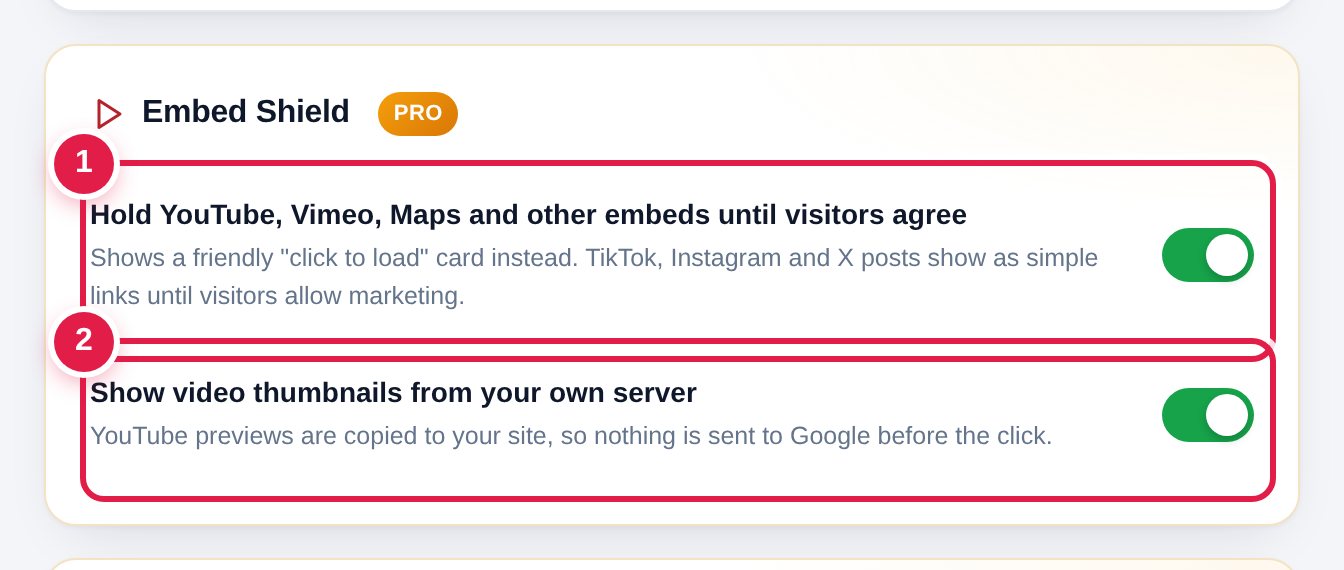
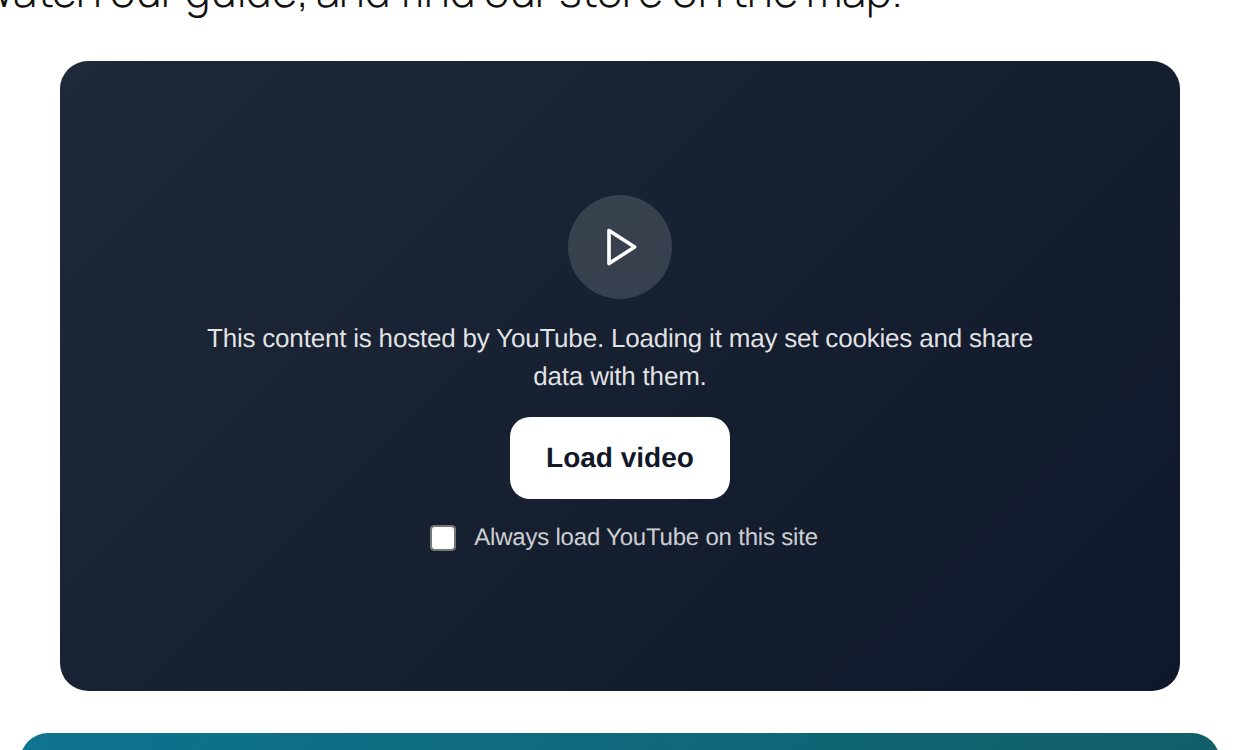
A YouTube video or Google Map on your page tells Google about the visitor before they've said yes. Embed Shield stops that.
Click Cookie Banner and scroll to Embed Shield.
Turn on Hold YouTube, Vimeo, Maps and other embeds until visitors agree 1.
Turn on Show video thumbnails from your own server 2 too. The picture on the card comes from your own site, so nothing goes to Google before the click.

Press Save changes. Open a page with a video in a private window. You'll see a card with a play button and a short note. The video loads when the visitor clicks it.

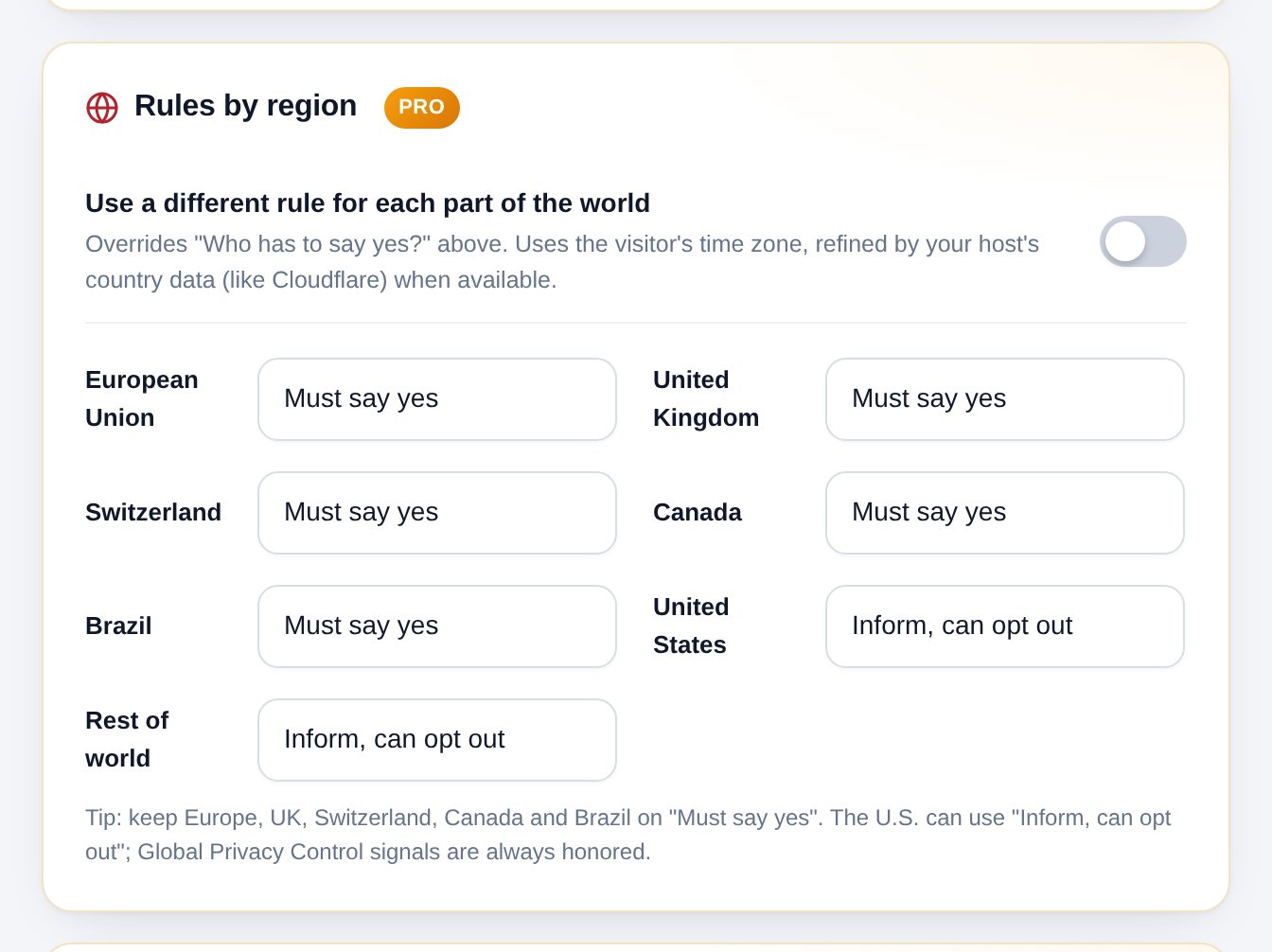
Europe asks for more than the U.S. does. With rules by region, each visitor gets the right banner for where they are.
In Rules by region, turn on Use a different rule for each part of the world.
Each region has three buttons:

Press Save changes. These rules replace the "Who has to say yes?" choice higher up.
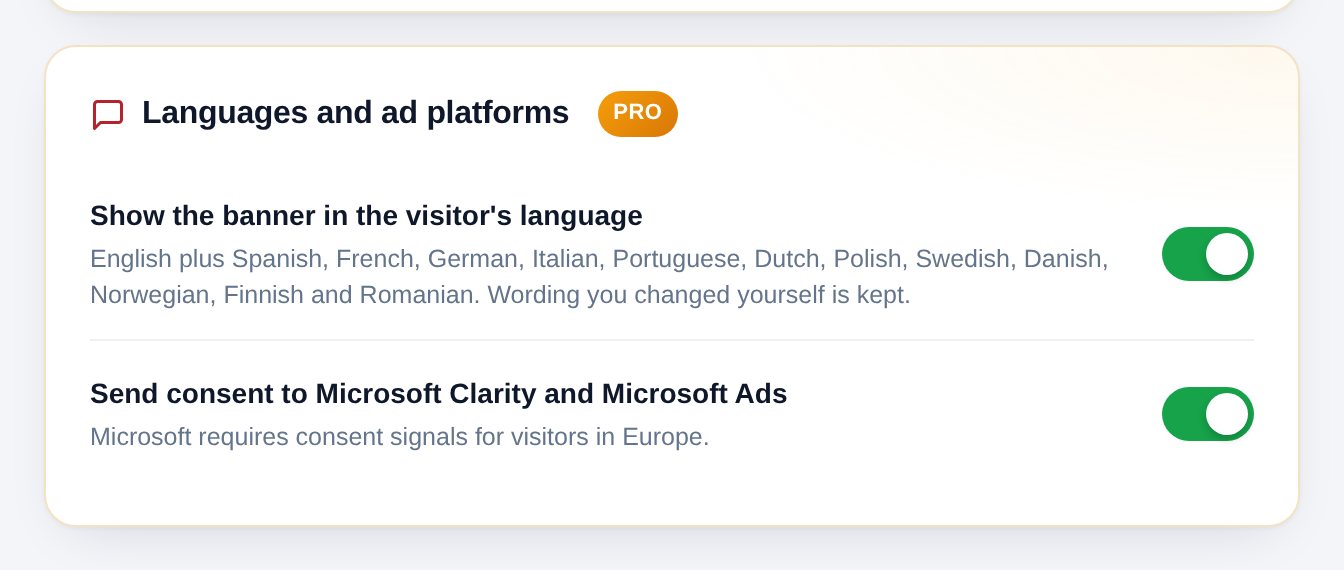
In Languages and ad platforms, turn on Show the banner in the visitor's language. The banner then shows in Spanish, French, German and 10 more languages, based on the visitor's browser.

If you changed the words yourself, your words are kept.
Turn on Send consent to Microsoft Clarity and Microsoft Ads. Microsoft needs this for visitors in Europe.
See how visitors answer your banner, and let it test a friendlier wording by itself.
Insights shows how visitors answer your cookie banner. It can also test a friendlier wording on its own and keep the one that works better.
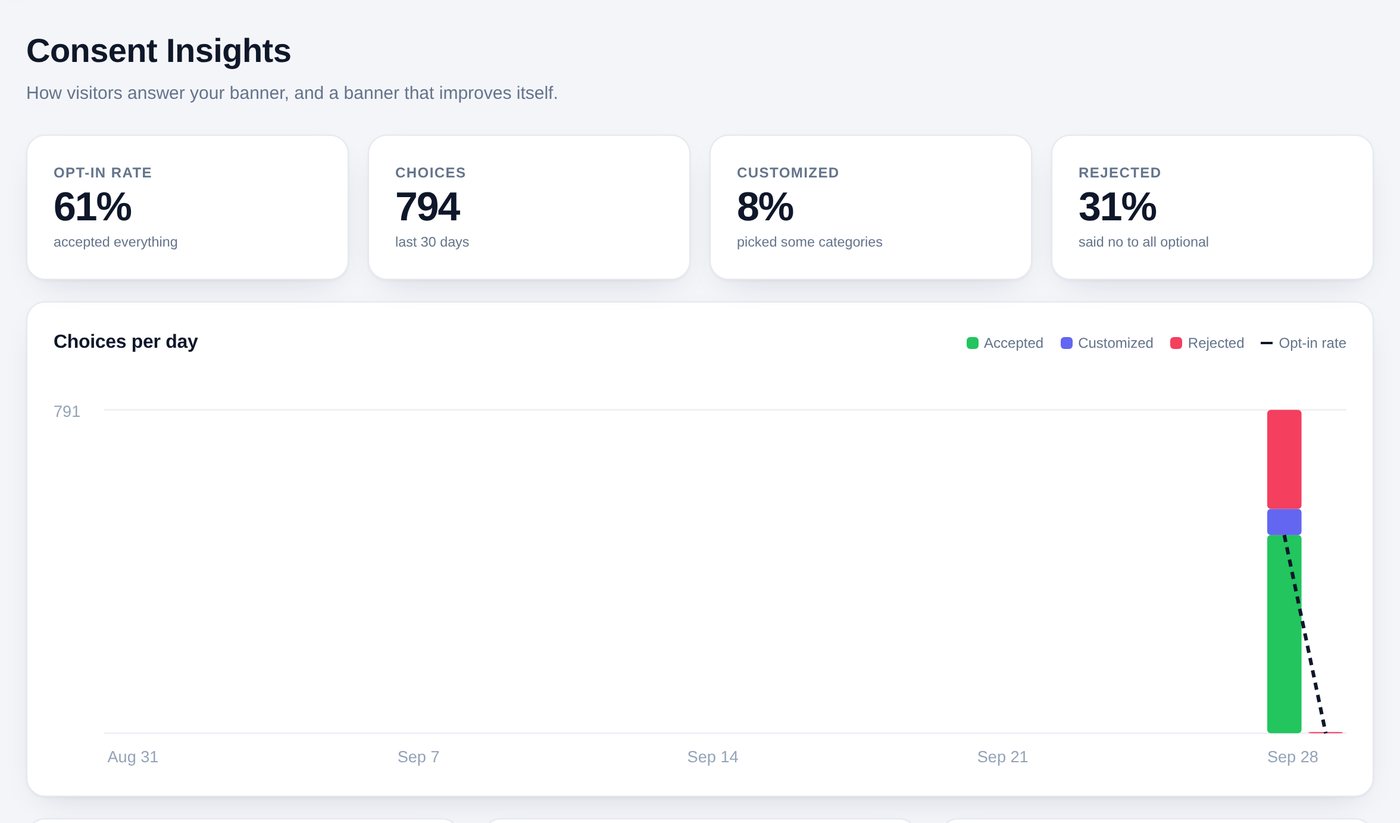
Click Insights. The four boxes at the top cover the last 30 days:

Choices per day shows each day's answers. Below it, you can compare the opt-in rate by region, by device (phone or computer) and by language.
Scroll to Self-optimizing banner and press Start the test.
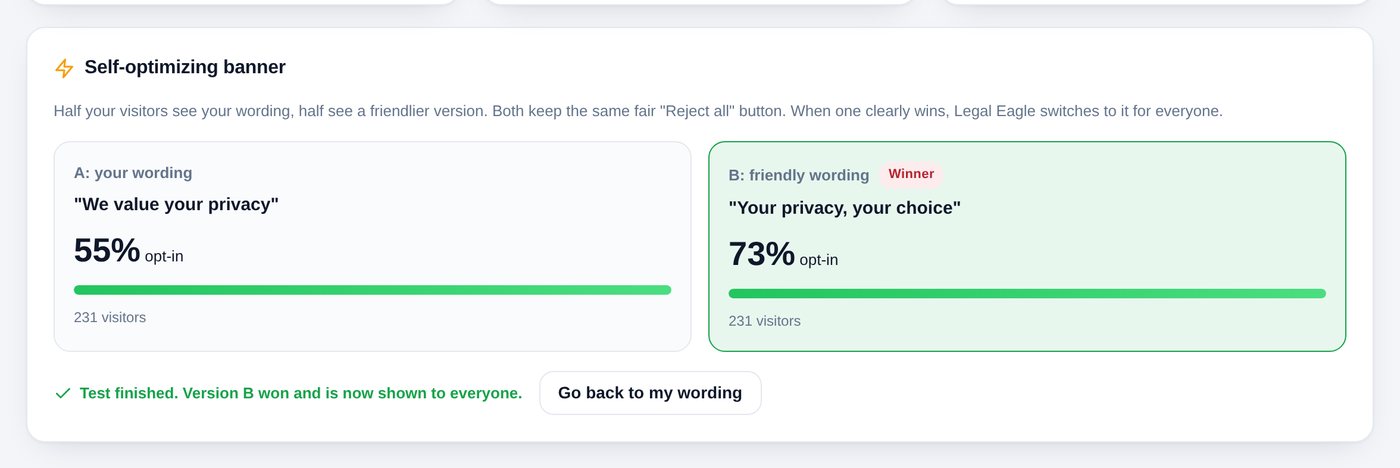
Half your visitors now see your wording (A), and half see a friendlier wording (B). Both have the same fair "Reject all" button, so it stays legal.

You don't need to do anything. When one wording clearly wins, Legal Eagle switches to it for everyone and marks it Winner.
Prefer your own words? Press Go back to my wording. To stop a test early, press Stop the test.
When a visitor asks for their data, answer in two clicks before the deadline.
Privacy laws let visitors ask for a copy of their data, or ask you to delete it. You have about 30 days to answer. Requests collects these requests, counts down the days, and does the work for you.
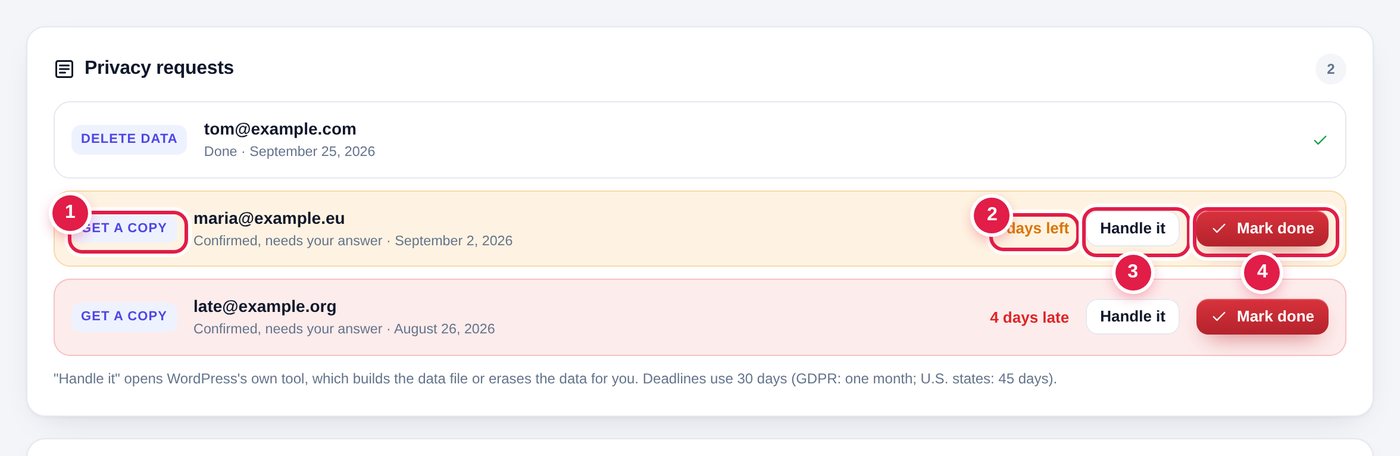
Click Requests. Each request shows what the visitor wants 1, their email, and the time left 2. Orange means the deadline is close; red means it's late.

Press Handle it 3. This opens WordPress's own privacy tool for that person.
Go back to Requests and press Mark done 4. The request moves to Done, with the date, so you have a record.
Lower on the same tab, Proof of agreement lists everyone who ticked your "I agree" box: when, who, where, and which version of your Terms and Privacy Policy they agreed to. Press Download all records (CSV) to save it. Set up the "I agree" box.
Add an "I agree" box to checkout and sign-up, keep records, and tell visitors when policies change.
If there's ever a dispute, you need to show that a customer agreed to your terms, and to which version. Pro adds an "I agree" box to your forms and writes down every agreement. It can also tell returning visitors when your policies change.
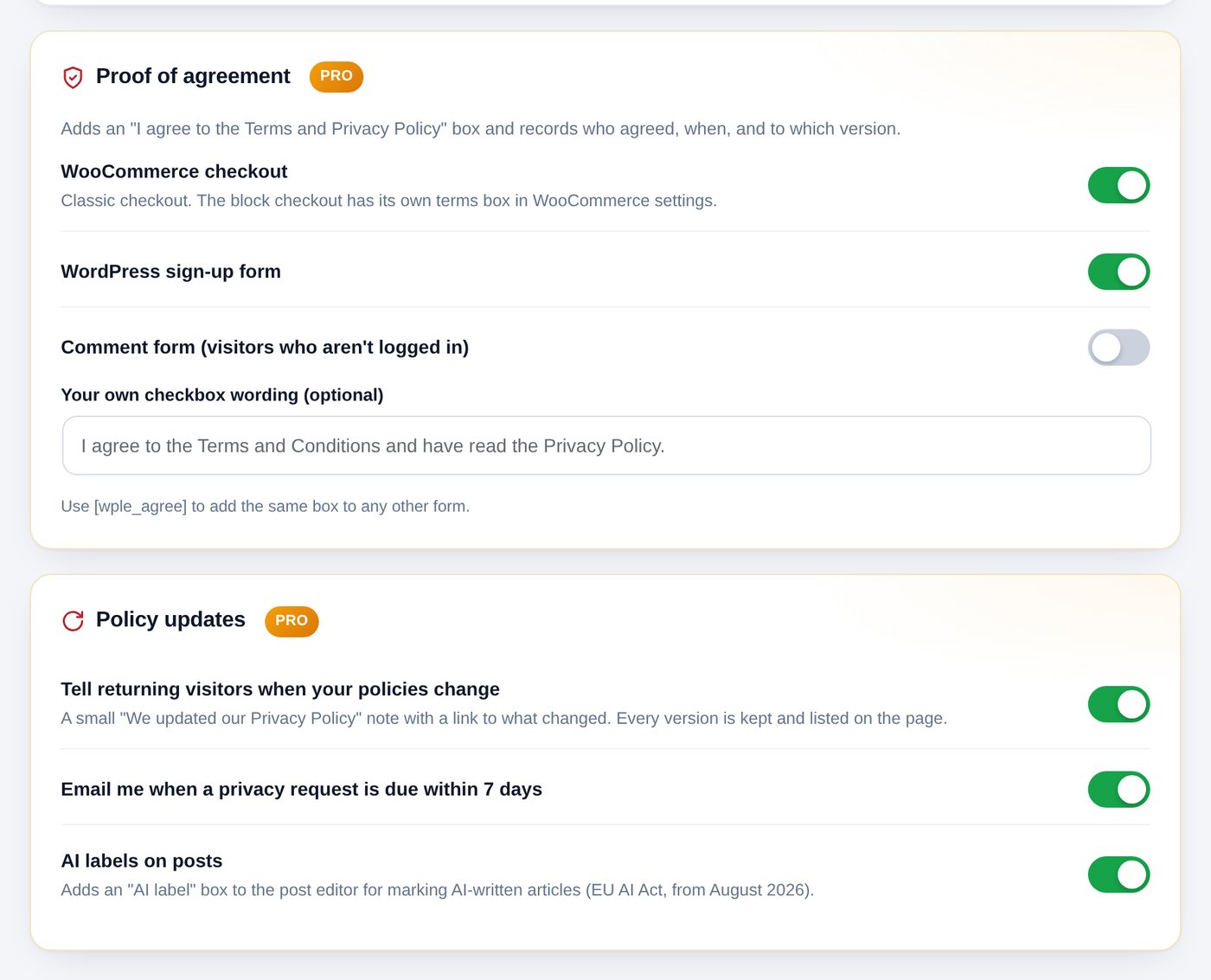
Click Settings and scroll to Proof of agreement. Turn on the places you want it:

You can type your own wording for the box, or leave it empty to use ours.
Put the shortcode [wple_agree] into that form. It shows the same box and records the agreement the same way.
In Policy updates, turn on Tell returning visitors when your policies change. When your Privacy Policy or Terms change, returning visitors see a small note, "We updated our Privacy Policy", with a link to what changed.
Every version is kept and listed at the bottom of the page, so anyone can see what it said on a given date.
Turn on Email me when a privacy request is due within 7 days.
Turn on AI labels on posts. In the post editor you'll get an "AI label" box to mark posts written with AI. New EU rules ask for this from August 2026.
Press Save changes.
Find the problems that cause accessibility complaints, and fix several with one switch.
Accessibility means people with disabilities can use your site, for example with a screen reader that reads the page out loud, or with only a keyboard. Complaints and lawsuits about it are common. Accessibility checks your key pages and fixes several problems for you.
Click Accessibility. The first time, press Run the checkup. After that, press Check again whenever you've made changes. It takes a few seconds.

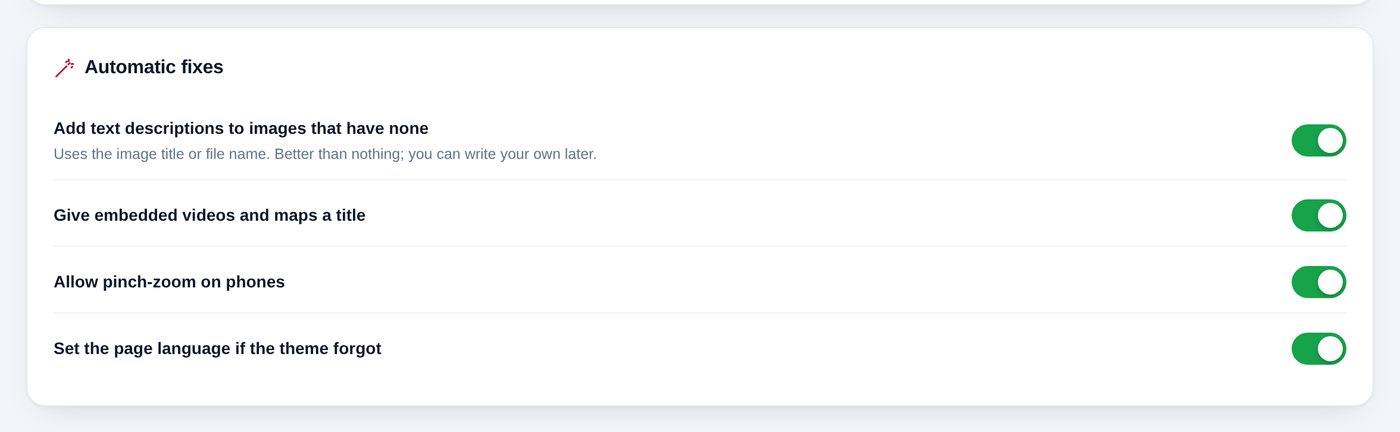
Scroll to Automatic fixes and turn them all on :

Then press Check again. Your score goes up.
Each problem that's left shows what's wrong, why it matters, and the page it's on. Click the page link 1 to open it.

Common quick fixes:
| Problem | What to do |
|---|---|
| Images with no description | In Media, click the image and fill in Alternative Text, e.g. "Red roses in a garden". |
| Links with no text | An icon or picture is used as a link. Add a short label to it in your theme or page builder, like "Instagram". |
| Form fields without a label | A box in a form has no name, only gray example text. Turn on the field's label in your form plugin. |
| Headings skip a level | Use Heading 2 after Heading 1, and Heading 3 after Heading 2, like chapters in a book. |