Install WP Legal Eagle, activate your license key, then set up your legal pages and cookie banner and keep them up to date. Step by step, with pictures.
Quick start
Short on time? Do just these six things. Each one is explained with pictures later in this manual.
How to read this manual
1 Red numbers in the text match the red numbers in the pictures.
Home Dark chips are the tabs at the top of the screen.
Fix it View Rounded chips are buttons you press.
Yellow underline marks a switch, box or link on the screen.
Click a chapter to jump to it. Each one takes a few minutes.
Paste your key once. It switches everything on and brings you updates.
Your license key is like the key to a new bike lock. You use it once, on each website, and then you can forget about it.
Click Legal Eagle in the WordPress menu on the left. If Legal Eagle isn't activated yet, the License screen opens by itself. Otherwise click License at the top, or License in the menu on the left.
Copy your key from the Access Center. Click in the License key box, paste it, then click Activate.
A green message shows your plan, for example Activated: WP Legal Eagle Pro.
Every level you bought has a green dot and says On. Levels you didn't buy have a grey dot and say Not included in your key. That's normal.
A red dot? Read the words next to it. The most common ones are below.
Buy the upgrade and you're done. It uses the same key and the same plugin. The new features switch on by themselves within a few hours. To switch them on straight away, open License and click Check now.
| It says | What to do |
|---|---|
| Not turned on yet | Paste your key and press Activate. |
| Not included in your key | Nothing, unless you bought it. If you did, click Check now. Still grey? Check the key in the ForgeCove Access Center. |
| Key already used on all its sites | Your key is used on as many sites as it allows. Remove it from an old site first (see below), or upgrade. |
| Cancelled or refunded | The purchase was refunded or cancelled. Contact support if that's a mistake. |
| On temporarily | Nothing. Our license service is being fixed and we switched everything on for you until it's back. |
Open the License screen, click Remove from this site, then click the Remove from this site button. That frees its slot.
Install Legal Eagle on the new site and paste the same key.
Moved a site to a new address, or copied it? The License screen says so. Click Check now and it uses one of your key's sites at the new address.
Since version 7, Pro and Agency are built into Legal Eagle. If you used an older version with separate Pro or Agency downloads, just update: the old ones switch off by themselves and everything keeps working, with the same key, settings and pages. A message then offers to delete them in one click. Your data is kept.
What Legal Eagle does for you, what each tab is for, and what the Protection Score means.
Legal Eagle looks after the legal side of your website. You set it up once, and it keeps itself up to date. This tour shows you around in 2 minutes.
Everything lives in Legal Eagle in your WordPress menu. At the top of every screen you'll see these tabs:

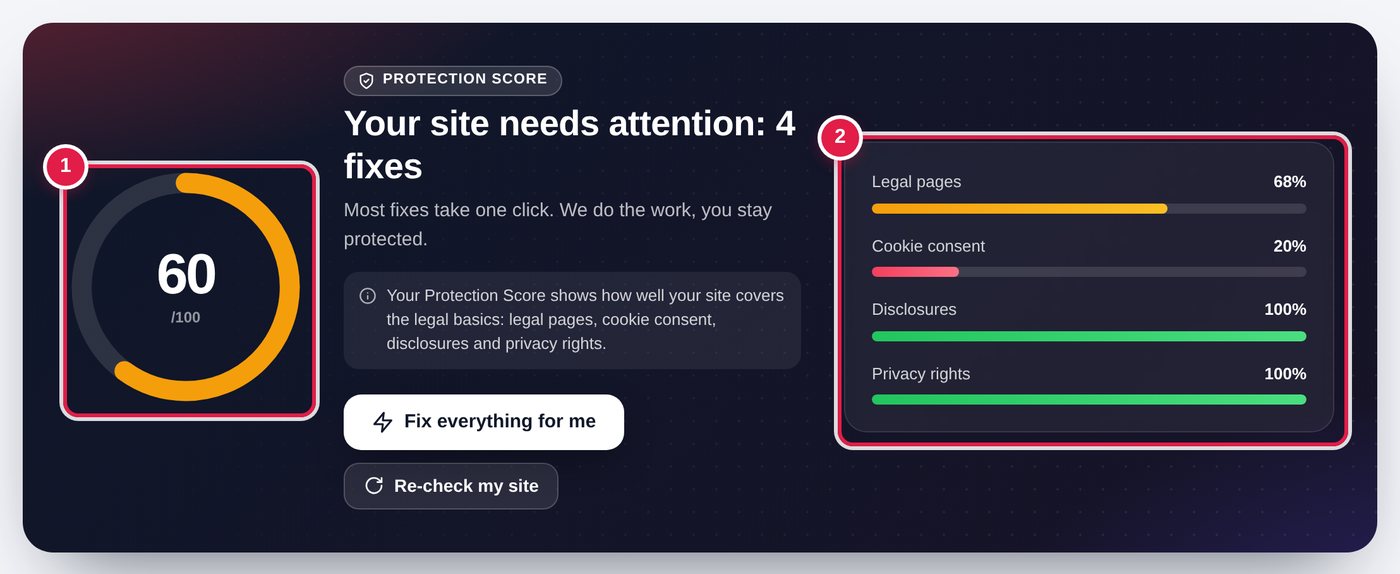
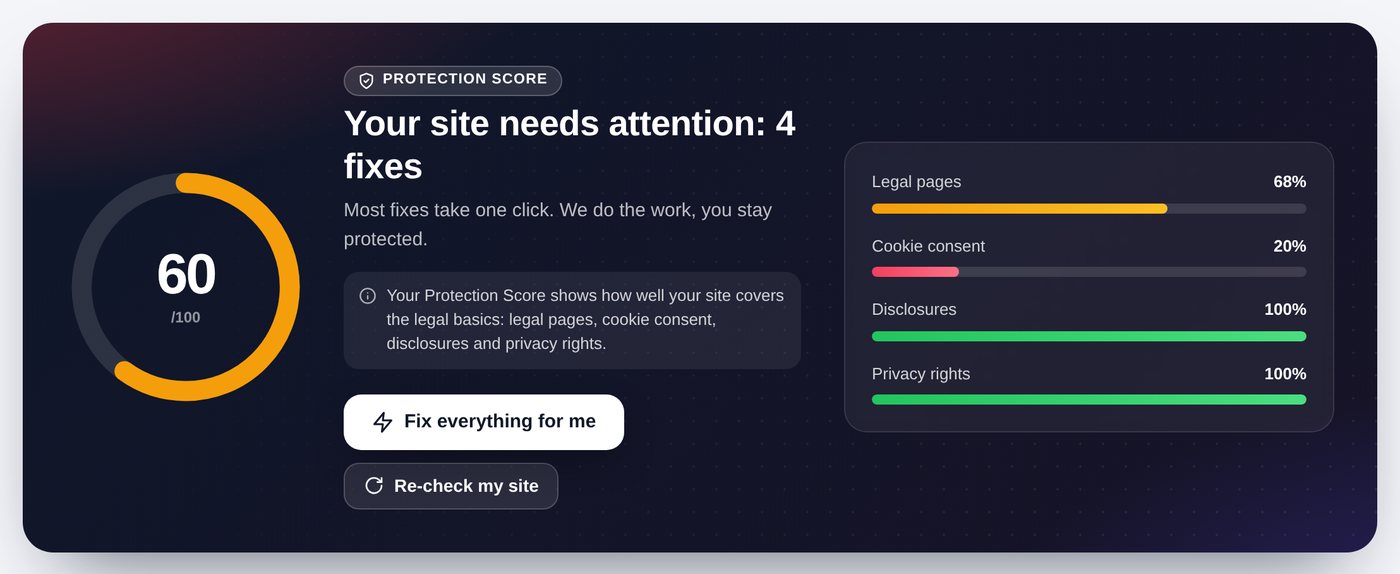
The big number on Home shows how well your site covers the legal basics. It goes from 0 to 100.
| Score | Color | What it means |
|---|---|---|
| 90 to 100 | Green | You're covered. Nothing to do. |
| 60 to 89 | Orange | A few things are missing. Most take one click to fix. |
| 0 to 59 | Red | Important things are missing. Fix these first. |
The four bars next to the score show where points are missing: Legal pages, Cookie consent, Disclosures and Privacy rights.
Answer two easy questions and press one button. Your pages and cookie banner go live.
The setup looks at your site, asks you two easy questions, and then builds everything for you. You don't need to know anything about the law.
First, activate Legal Eagle with your license key (1 minute). The License screen then shows a Start setup button. If you closed it, click Legal Eagle in the WordPress menu on the left, then click Setup.
You can also start it again any time from Settings with Run the setup again.
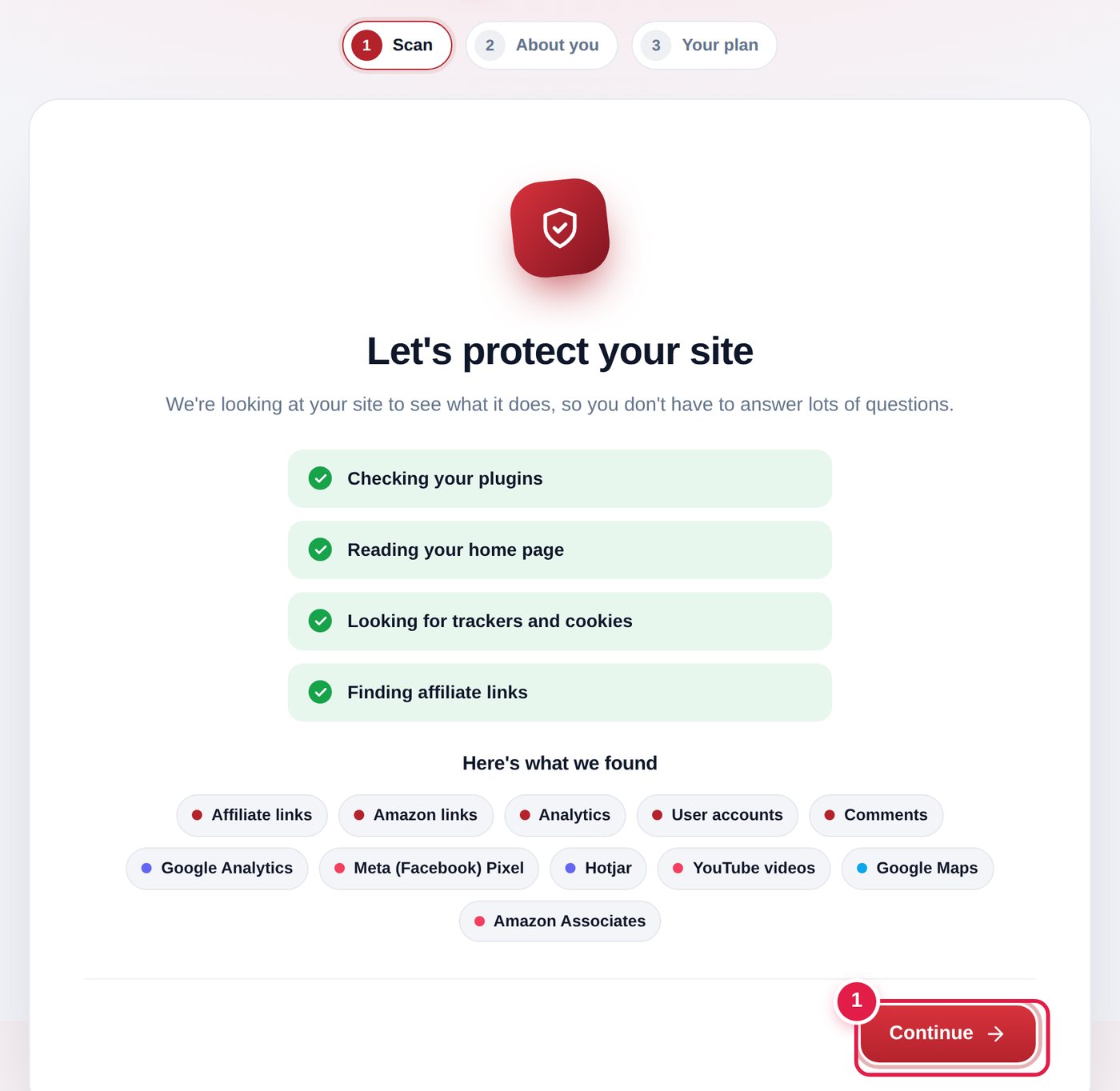
It checks your plugins, reads your home page, and looks for trackers and affiliate links. A tick appears next to each line when it's done.
Then you'll see Here's what we found, for example Google Analytics or YouTube videos. Click Continue.

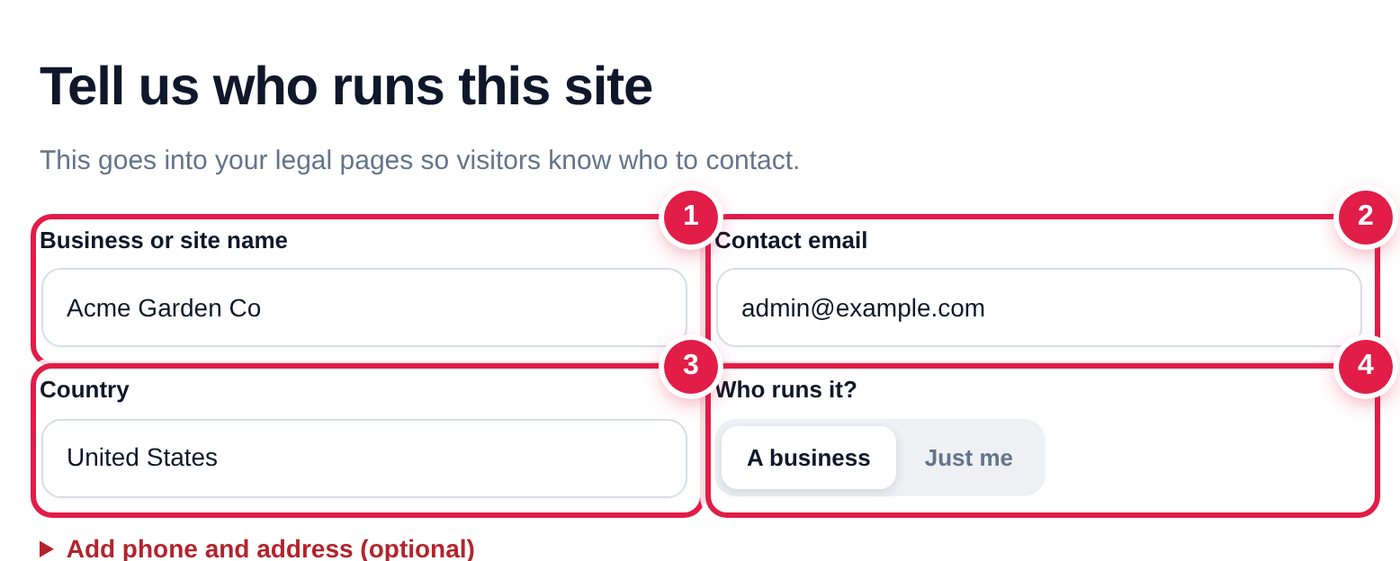
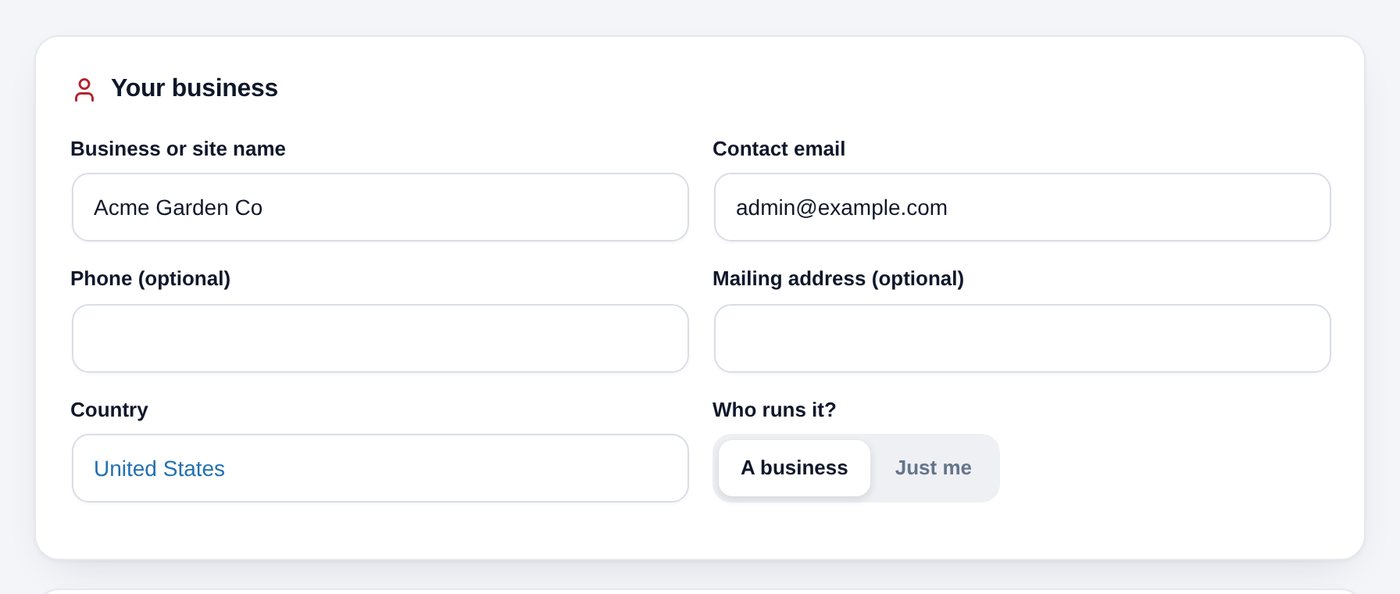
Check your Business or site name 1 and Contact email 2. They're filled in for you, so usually you just look and move on.
Pick your Country 3, then click A business or Just me 4.

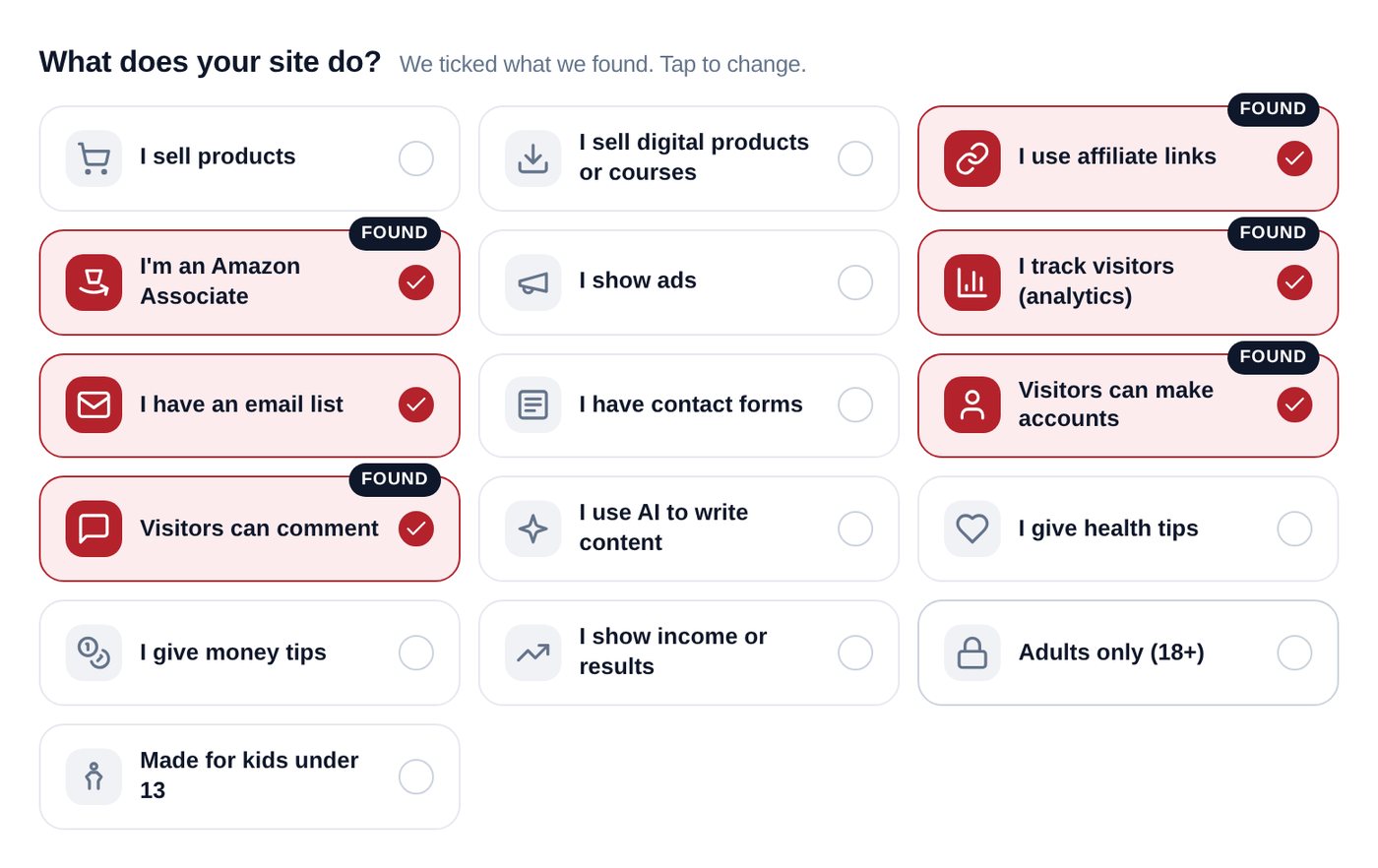
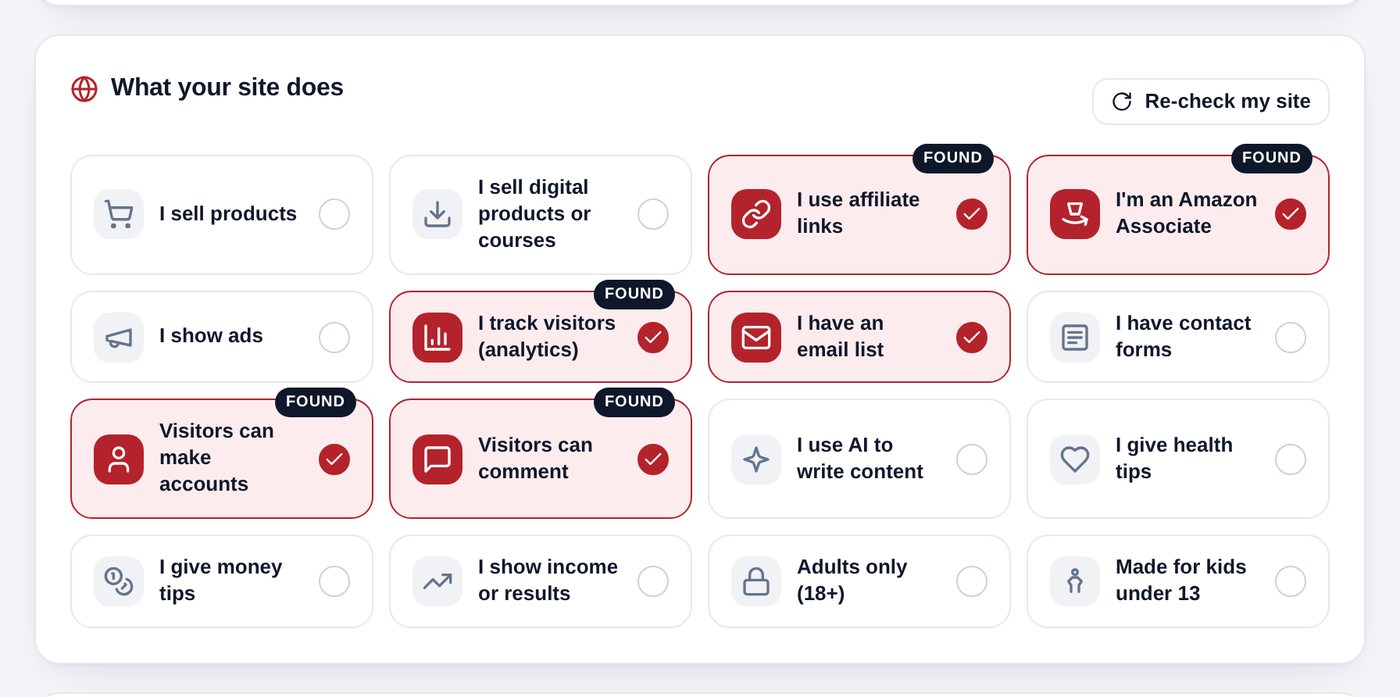
Under What does your site do? the things it found are already ticked, with a small Found label. Tap a tile to tick or untick it.

For example, tick I sell products if you have a shop, or I use AI to write content if you do. Each tile adds the right words to your pages. Then click Continue.
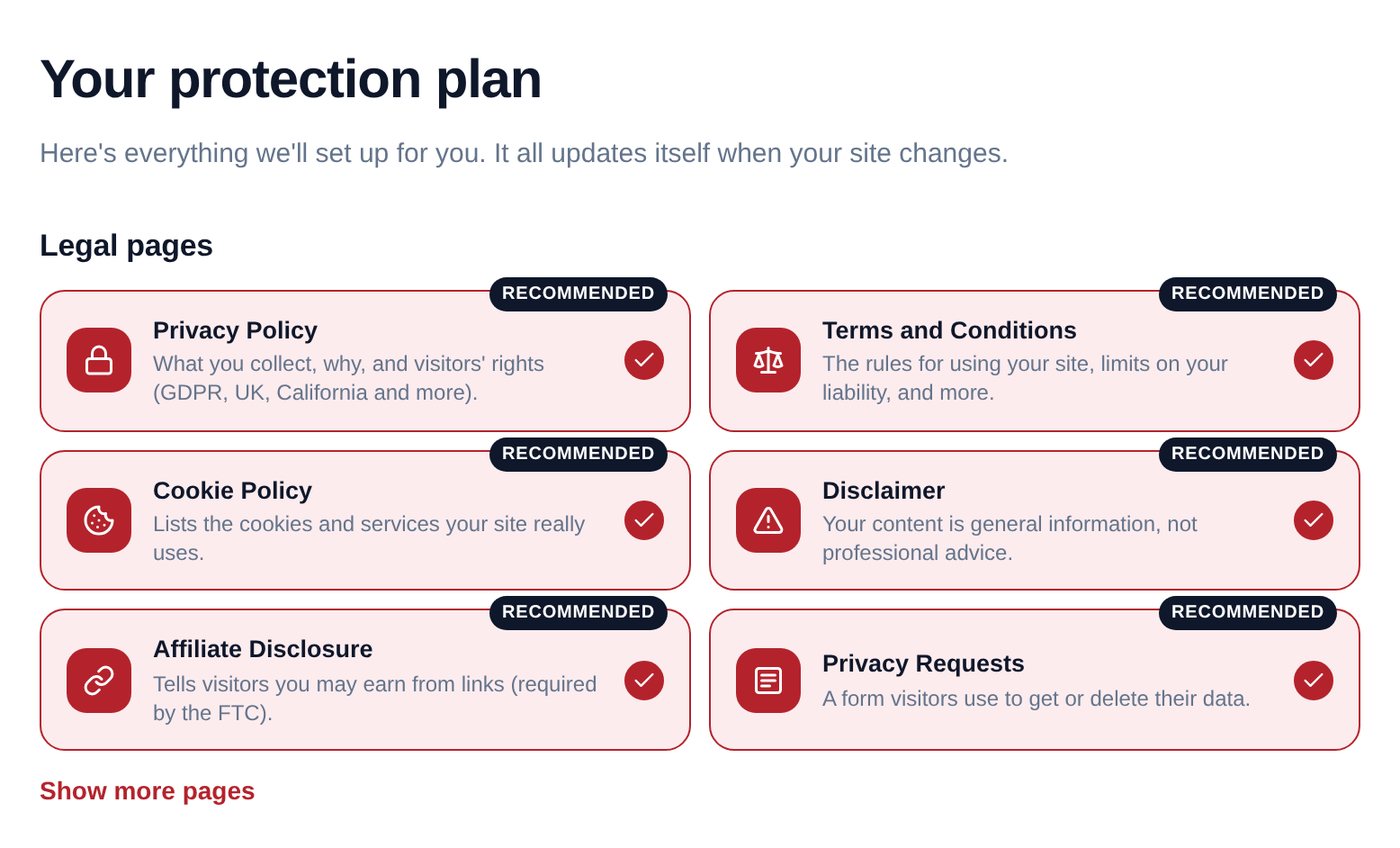
Now you see Your protection plan. The legal pages you need are already ticked and say Recommended. Leave them ticked.
Want an extra page, like a Refund Policy? Click Show more pages and tick it.

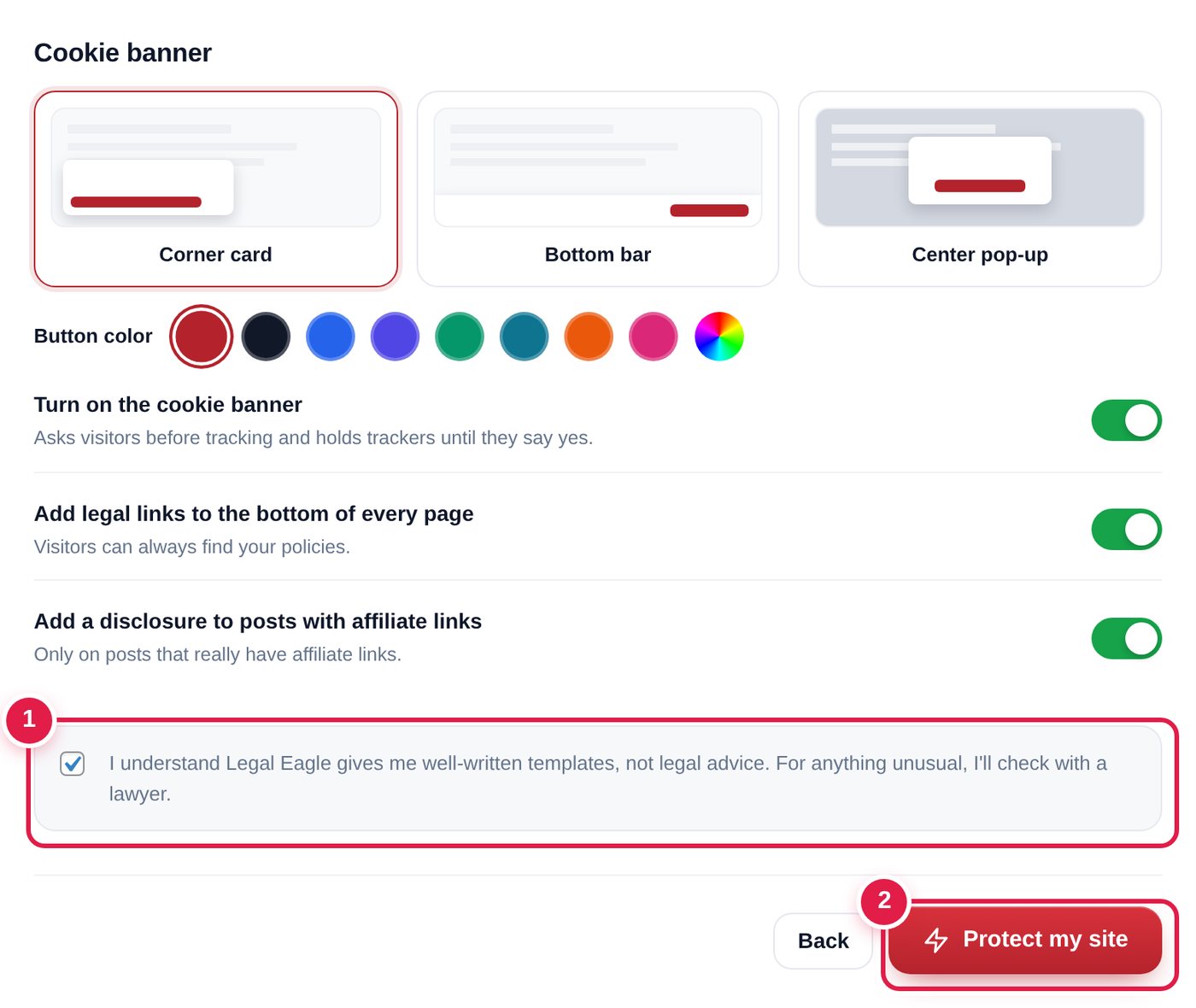
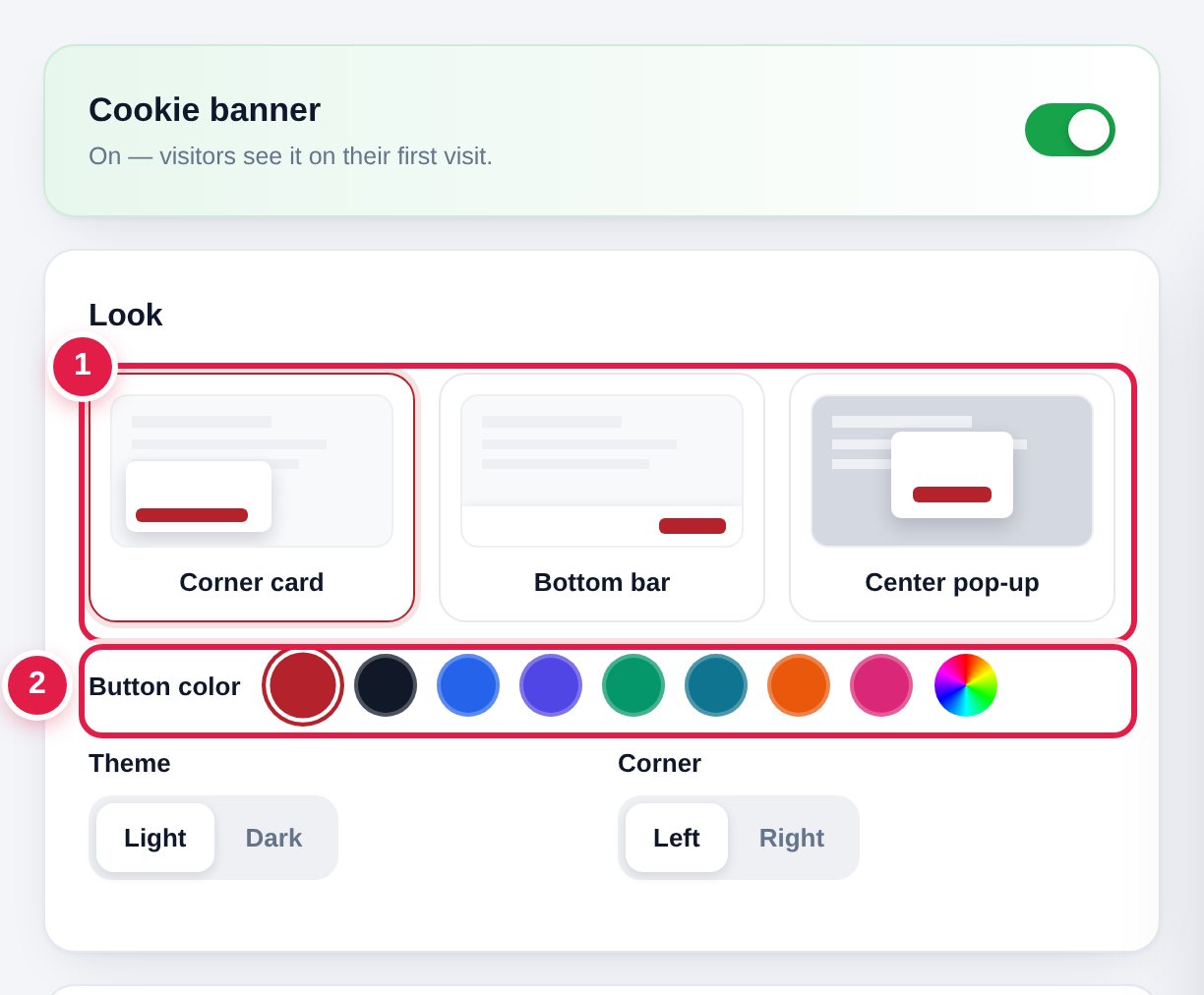
Choose Corner card, Bottom bar or Center pop-up, then click a color. You can change this later in Cookie Banner.
Leave the switches below turned on . They turn on the banner, add links to the bottom of every page, and add affiliate notices where needed.

Tick the box that starts with I understand. It says these are templates, not legal advice.
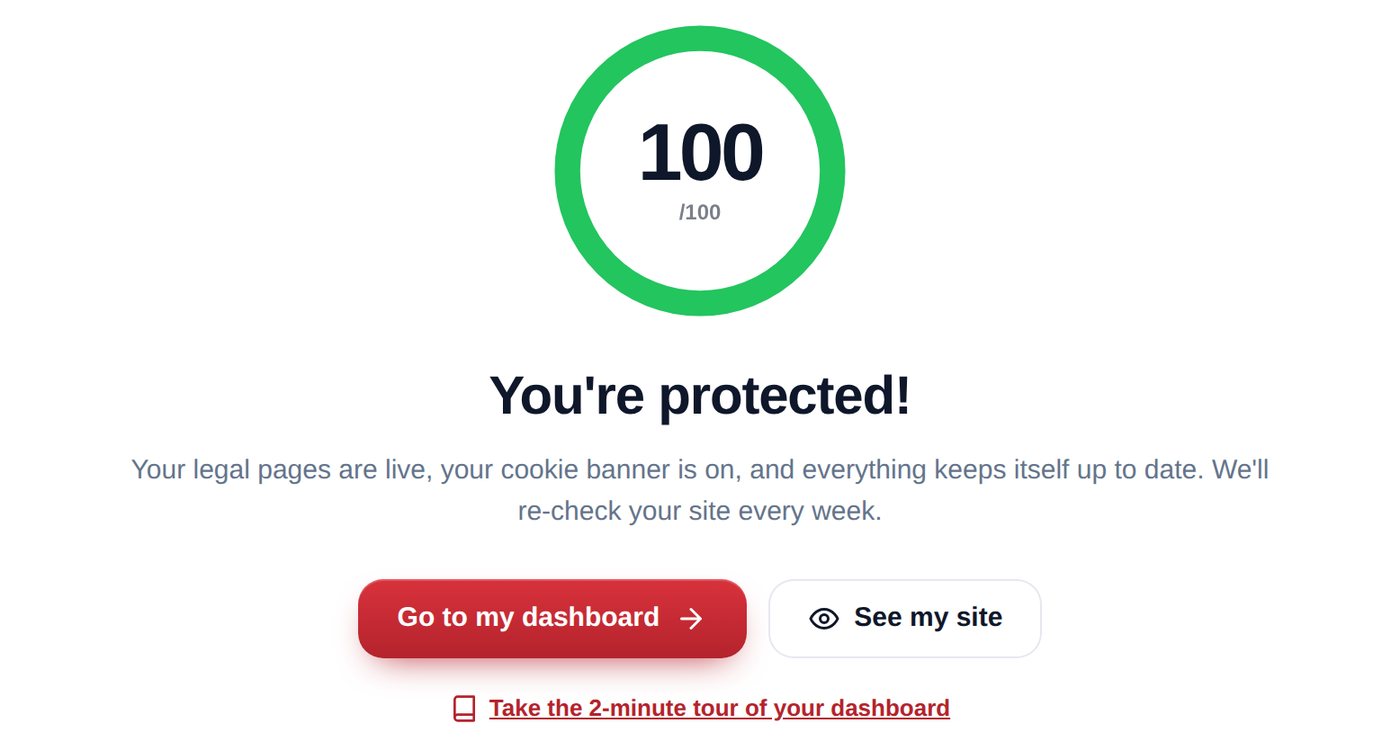
Press Protect my site. Watch the list tick itself off. After a few seconds you'll see You're protected!

Click Go to my dashboard. That's Home, where you'll see your Protection Score.
Read your score and fix anything missing, mostly with one click.
Home is your control room. It shows your Protection Score and a short to-do list. Most things on the list fix themselves when you press one button.
Click Home. The ring 1 is your Protection Score, from 0 to 100. The words next to it tell you how you're doing.
The four bars 2 show where points are missing. A full green bar means that part is done.

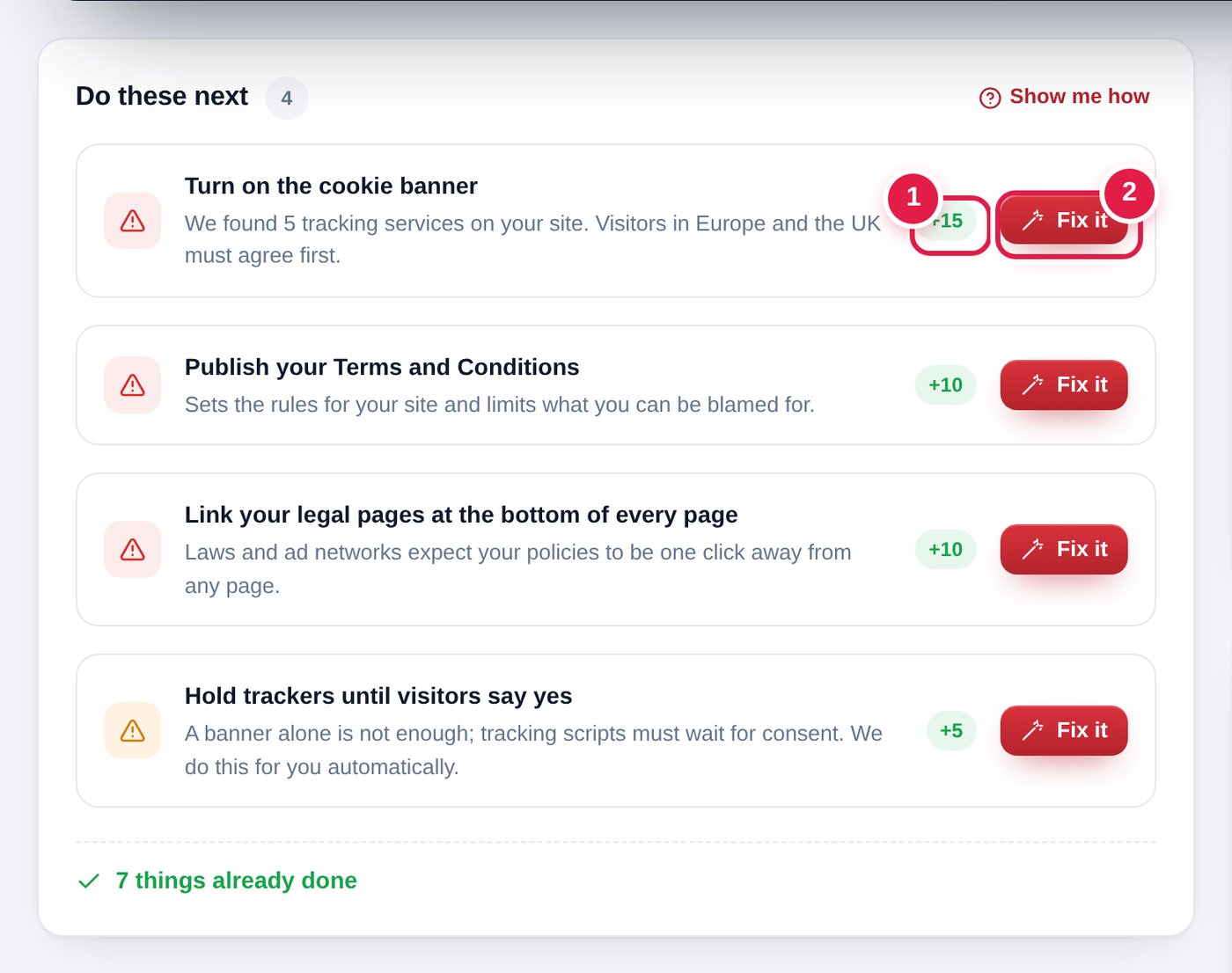
Under Do these next you see what's missing, with the most important first. The number like +15 1 is how many points it adds.
Press Fix it 2 and it's done for you. Some items have Open or Add details instead, which take you to the right place.

In a hurry? Press Fix everything for me at the top. It fixes every item that can be fixed with one click.
Click things already done under the list to see everything that's in place. It's a nice list to show a client or your boss.
Added a new plugin, a YouTube video or a shop? Press Re-check my site. Your score and your pages update in a few seconds.
You don't have to remember: Legal Eagle checks again by itself every week.
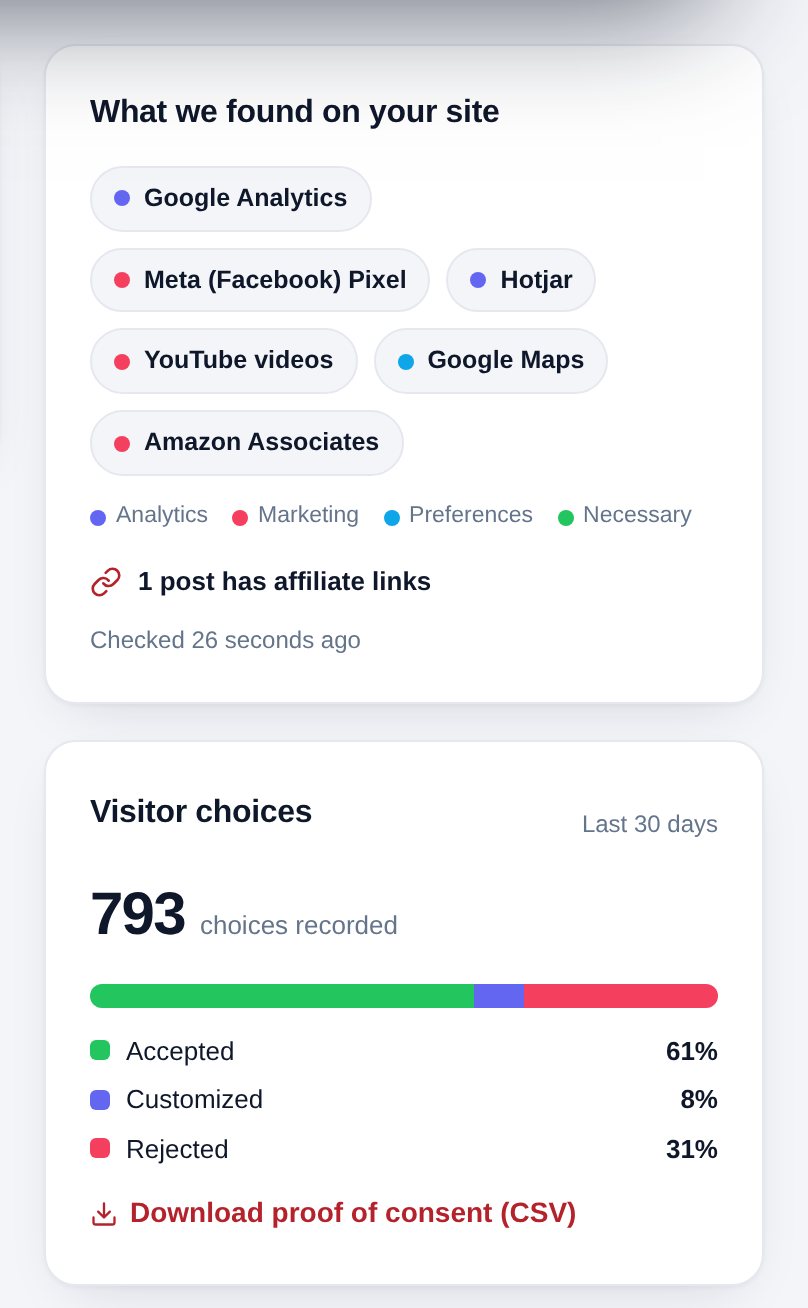
The What we found on your site card lists the tracking tools and services on your site. The colored dot shows the kind:

Everything on this list goes into your Cookie Policy and your banner automatically.
Visitor choices shows how many visitors said yes, picked some, or said no in the last 30 days.
If anyone ever asks you to prove you asked for consent, click Download proof of consent (CSV). It opens in Excel or Google Sheets. It never stores names or full IP addresses.
Create, view and change your Privacy Policy, Terms and the rest.
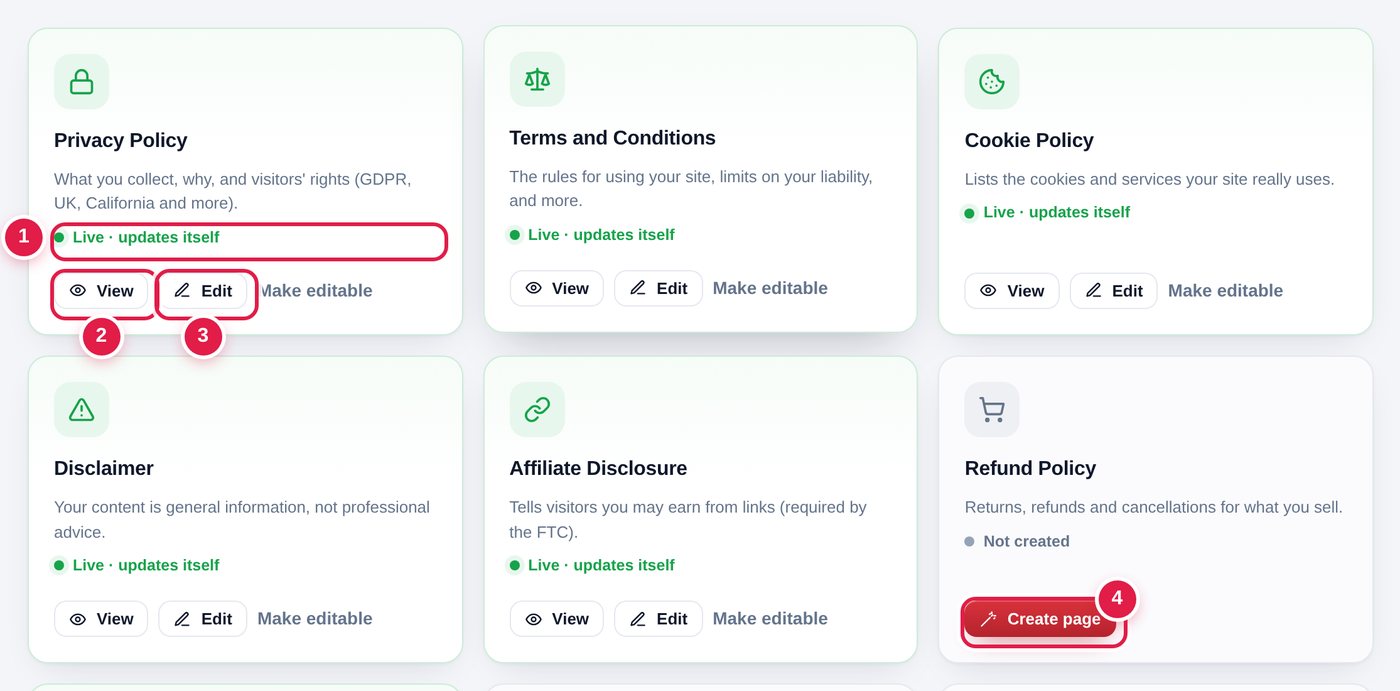
Legal Pages shows every legal page Legal Eagle can write for you. Each card tells you if the page is live, and gives you buttons to view or change it.

A smart page writes itself from your details. When you change your email in Settings, or add Google Analytics to your site, the page updates by itself. You never have to rewrite it.
[legal_eagle page="privacy"]. Leave that block alone, and type your own text above or below it. Then press Save.Click Legal Pages at the top.
Find a card that says Not created, for example Refund Policy. Press Create page.
If several recommended pages are missing, a big button at the top says Create 2 recommended pages. Press it to make them all at once.
The card now says Live · updates itself. Press View to see it.
Want to change the words inside the page itself? Press Make editable on its card, then OK.
This turns the smart page into normal text that you can change like any other WordPress page. The card will then say Live · your own text.
Changed your mind? Press Switch to smart page on the card. The page becomes a smart page again. WordPress keeps your old text in the page's history, so nothing is lost.
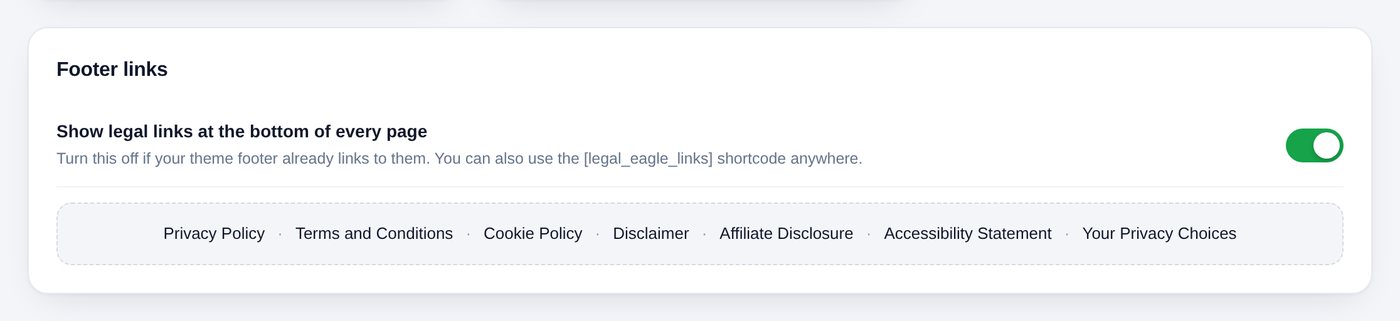
Scroll to the bottom of Legal Pages to the Footer links card. When the switch is on , a row of links to your legal pages shows at the bottom of every page of your site.

Turn it off only if your theme's footer already links to your legal pages. You can also put the links anywhere yourself with the shortcode [legal_eagle_links].
Pick a look, choose who must say yes, and check it on your site.
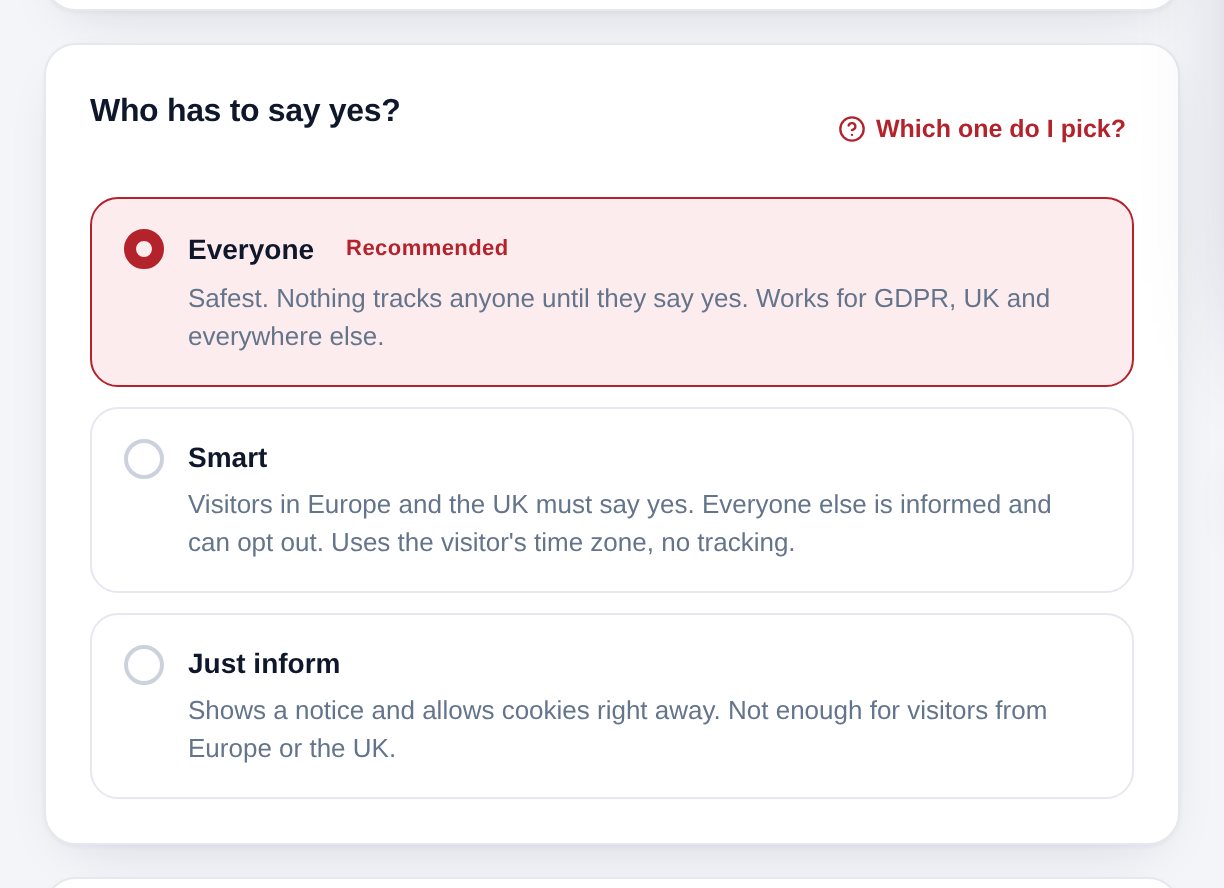
The cookie banner is the small box that asks visitors "Is it OK to track you?" Legal Eagle also keeps tracking tools waiting until the visitor says yes. That second part is what the law really cares about, and it happens automatically.
Your business details, what your site does, disclosures, the age check and shortcodes.
Settings holds your business details and a few extras. When you change something here, all your smart pages update by themselves.
Click Settings. In Your business, check your Business or site name, Contact email and Country. Phone and address are optional, but good to add if you have them.

In What your site does, the red tiles are switched on. A FOUND label means Legal Eagle spotted it on your site by itself.
Click a tile to switch it on or off. For example, click I sell products when you open a shop, or I give health tips if you write about health. Your pages add the right sections, and your to-do list on Home suggests any new page you need.

Press Re-check my site to look for new things right now.
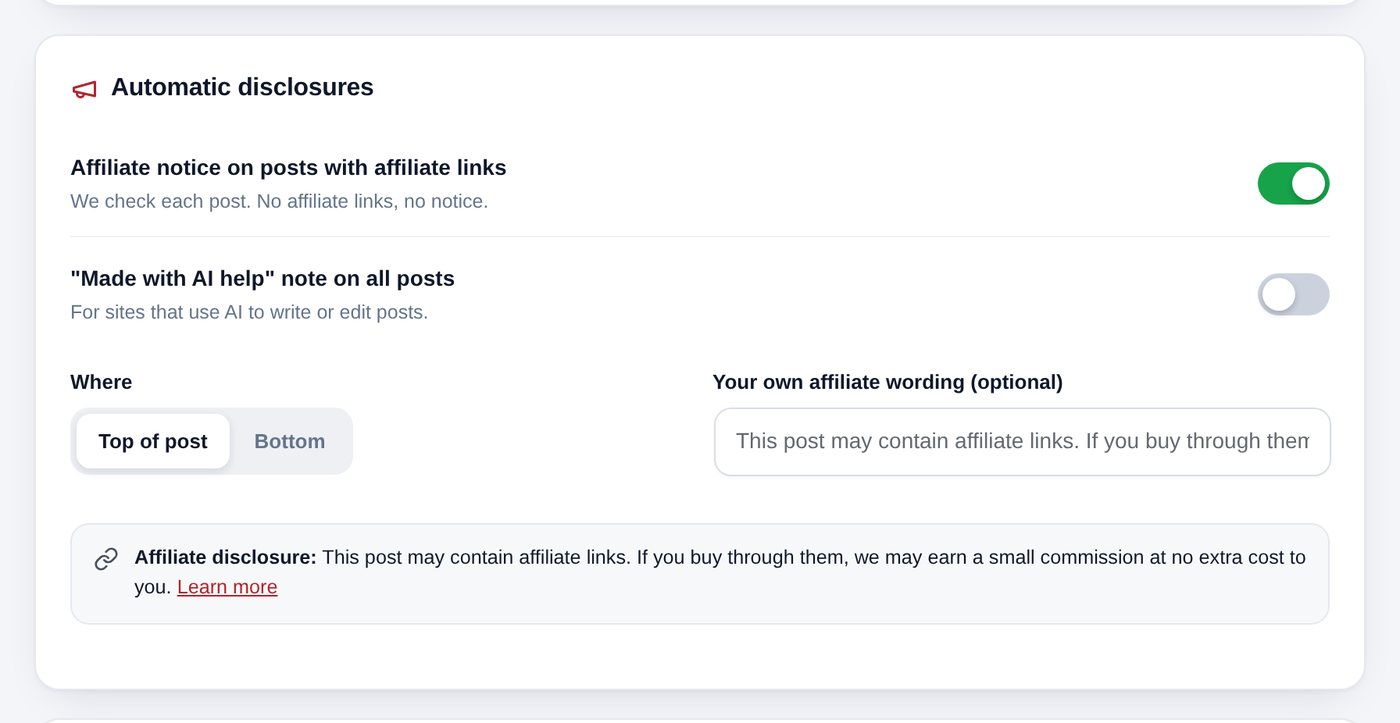
In Automatic disclosures:
Pick Top of post or Bottom. You can type your own wording, and the box below shows how it will look.

Selling alcohol, vapes, or adult content? Turn on Ask visitors to confirm their age, choose the Minimum age, and type where under-age visitors should go. Everyone else can skip this.
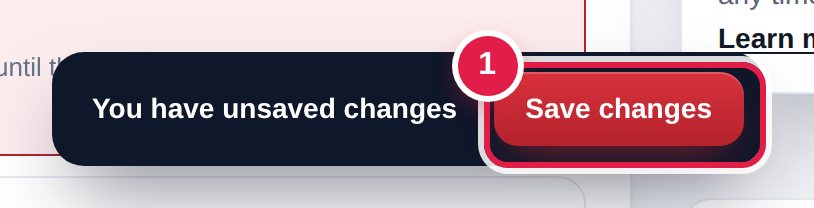
Press Save changes in the bar at the bottom of the screen.
Everything is added to your site automatically. Shortcodes are only for when you want something in a special place. Click a shortcode in the Shortcodes card to copy it, then paste it into any page or post.
| Shortcode | What it shows |
|---|---|
[legal_eagle_links] | A row of links to your legal pages |
[wple_privacy_form] | The form visitors use to ask for their data |
[wple_disclosure type="affiliate"] | An affiliate note, anywhere you like |
[wple_disclosure type="sponsored"] | A "this post is sponsored" note |
[wple_disclosure type="health"] | A "not medical advice" note |
[legal_eagle page="privacy"] | Any smart page's text |
See your site the way a new visitor does, in 2 minutes.
Let's look at your website the way a brand-new visitor sees it. It takes 2 minutes, and it's the best way to know everything works.
A private window acts like a new visitor who has never been to your site.
Type your website's address and press Enter.
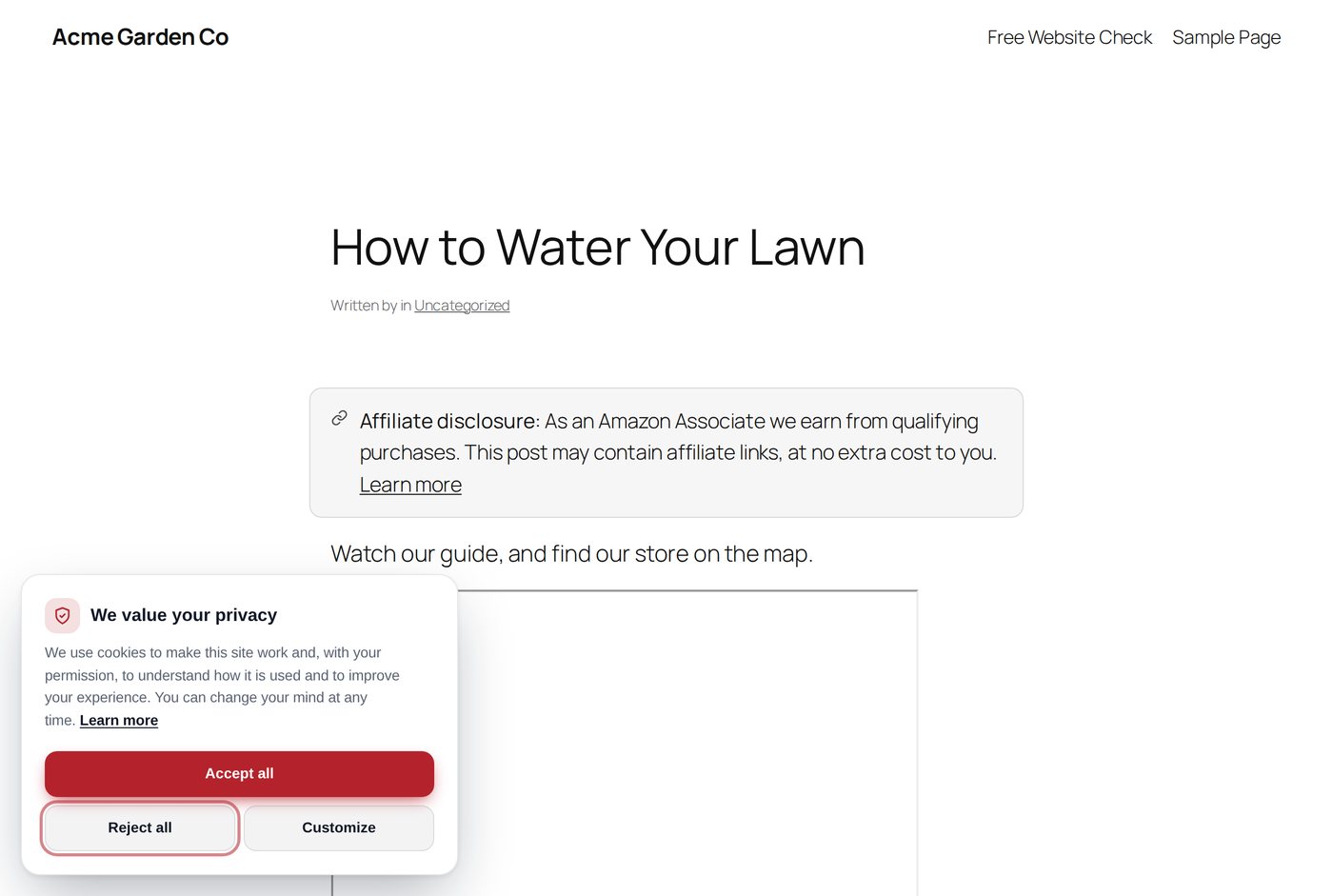
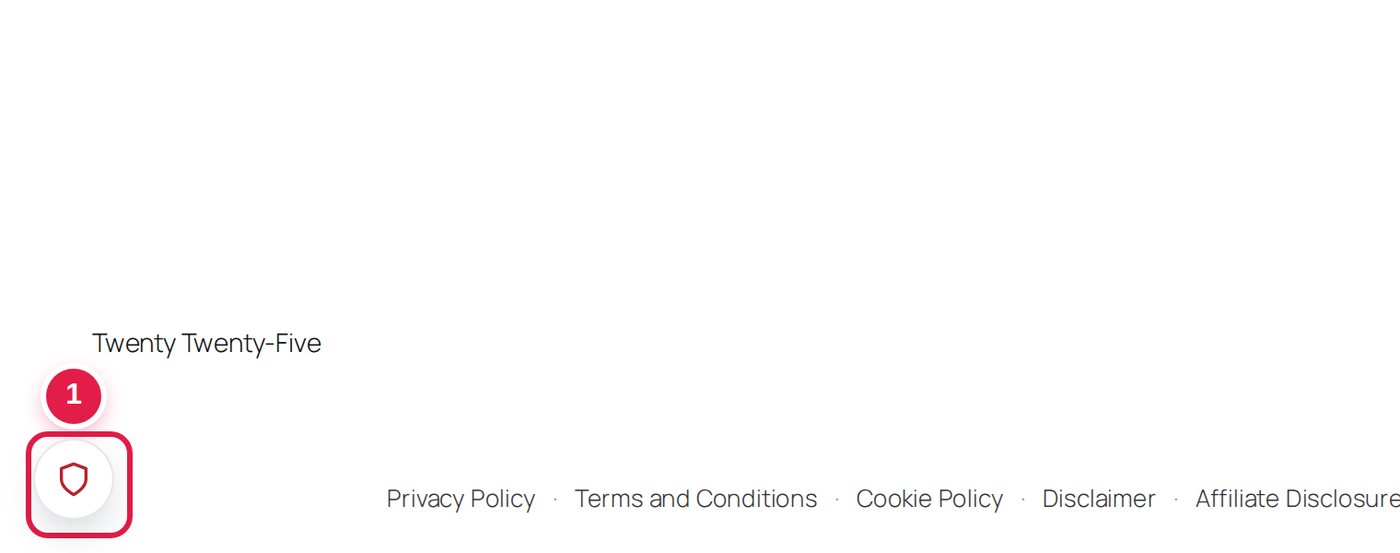
After you choose, a small round shield button 1 stays in the corner. Clicking it opens the banner again, so visitors can change their mind.

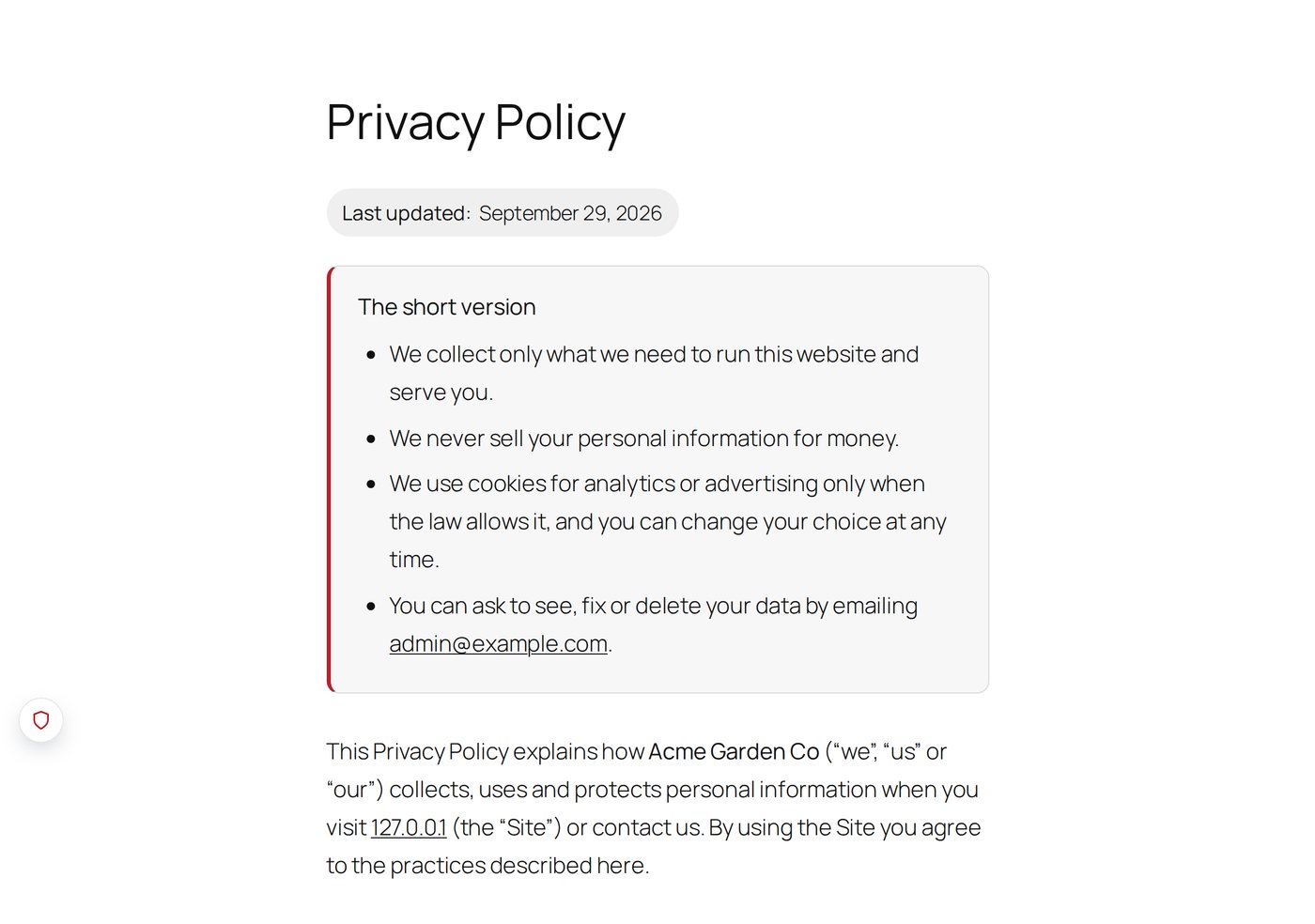
Open the Privacy Policy. Check that your business name and email are right. It lists the services Legal Eagle found, like Google Analytics.

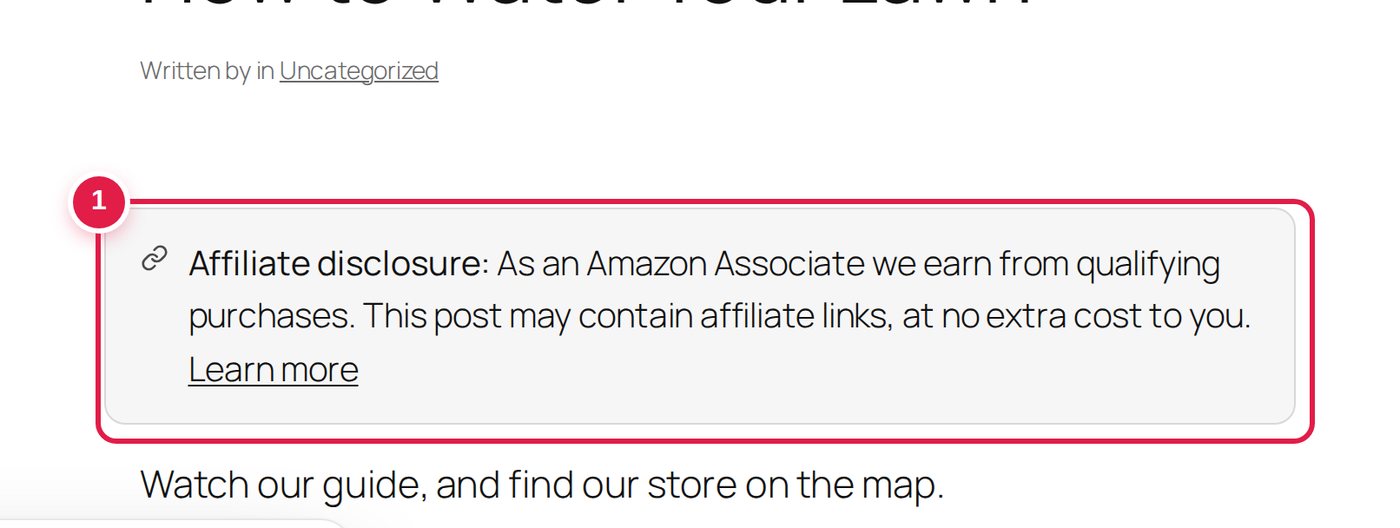
If you use affiliate links, open one of those posts. The affiliate notice 1 should be at the top (or bottom, if you picked that).

The banner doesn't show, a page says the wrong thing, and other quick answers.
Something not quite right? Find your question below and click it to see the answer. Most fixes take less than a minute.
Try these one at a time:
wple to that setting's list of exclusions.Open Settings, fix the details in Your business, and press Save changes. Every smart page updates straight away.
If one page still shows the old details, it was made editable. Open Legal Pages and press Switch to smart page on its card, or change the text yourself with Edit.
You have two choices:
Read the Legal pages guide for pictures.
That means Legal Eagle is switched off. Go to Plugins in WordPress and make sure Legal Eagle is active.
Using a page builder like Elementor or Divi? Put the text [legal_eagle page="privacy"] in the builder's Shortcode widget, not a normal text box.
No problem. Go to Pages, click Trash at the top of the list, hover over the page and click Restore.
Or just open Legal Pages and press Create page on its card to make a fresh one.
Open Home and look at Do these next. Each item shows how many points it adds. Press Fix it on each one, or Fix everything for me.
Items with a small "i" and no points are only tips. They don't change your score.
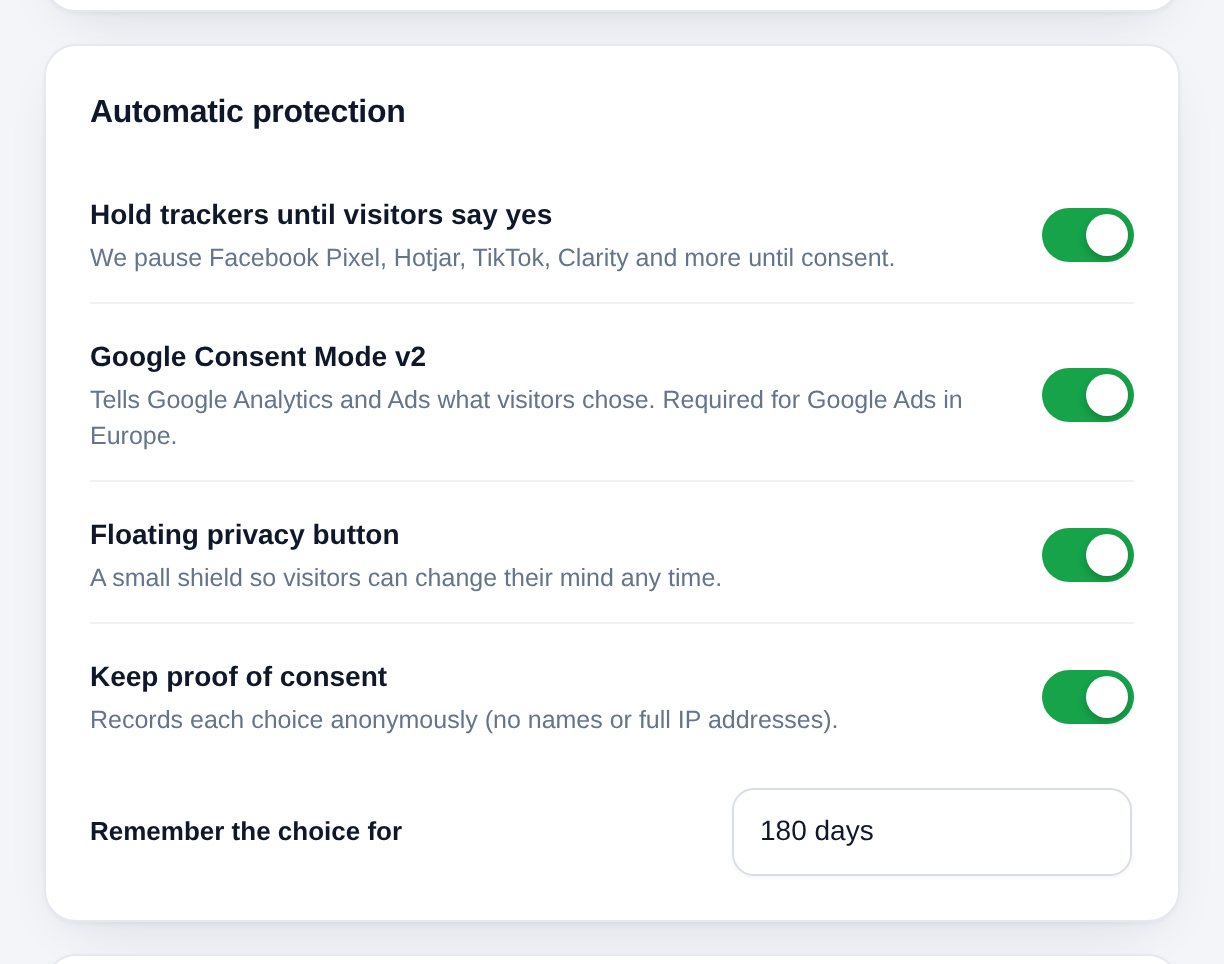
With Consent Mode, Google Analytics can still load, but it doesn't use cookies or track the person until they say yes. That's how Google designed it, and it's allowed.
No. Legal Eagle checks your site every week and updates your Cookie Policy and banner by itself. To update right away, press Re-check my site on Home.
Your pages stay published. The banner and notices stop, and smart pages stop updating. If you turned on Delete data when I delete the plugin in Settings, the plugin's settings are removed too.
No. Legal Eagle gives you carefully written templates that cover what most websites need. If your business is unusual or high-risk, ask a lawyer to look over your pages.