WP Legal Eagle AgencyWP Legal Eagle 7.0.3 · Agency built in · October 2026
Step-by-step, with pictures

WP Legal Eagle Agency
Agency Manual

Your brand, client reports, client mode, blueprints and a lead-getting site checker. Agency is built into WP Legal Eagle: your license key switches it on.

7short guides
23 minto read it all
No jargonone action per step
Templates, not legal advice.WP Legal Eagle Agency

What's inside

Click a chapter to jump to it. Each one takes a few minutes.

  1. 1Set up your agency in 10 minutesThe order to do things in, from your details to your first client report.3 min
  2. 2Put your own brand on itYour name, logo and color in the menu, the dashboard and every report.3 min
  3. 3Client reports: view, PDF, email and shareShow clients what you did, every month, without lifting a finger.5 min
  4. 4Hand the site to your clientLet clients see their score and reports without changing any settings.3 min
  5. 5Set up the next site in one minuteSave this site's setup as a file and load it on the next client site.3 min
  6. 6Get leads with the free site checkerPut a free checker on your own website. Visitors check their site and leave their email.4 min
  7. 7Your website dashboard, explainedWhat your two scores mean, and how to read and download your report.2 min

Chapter 1 · 3 minutes

Set up your agency in 10 minutes

The order to do things in, from your details to your first client report.

Agency is where you set up your brand, your client reports and client mode. Do these five steps once on your first client site, then save a blueprint to copy everything to the next one.

First: activate Agency on each client siteOpen License on the client's site and paste your license key. Each client site uses one activation: Agency covers up to 1,000 sites, Agency Starter up to 50. Stopped working with a client? Click Remove from this site there to free the slot. Agency is built into Legal Eagle: there's nothing extra to install on client sites. Show me how
You'll need
  • Your agency's name, email and website.
  • Your logo (a PNG or JPG, ideally wide and on a white or clear background).
  • Your client's email address, for their monthly report.

The four shortcuts at the top

The four shortcut tiles on the Agency tab

Do it in this order

  1. Fill in Your agency

    Click Agency. In Your agency, type your Agency name, Email, Website and phone. These show on every client report and on your client's Home screen.
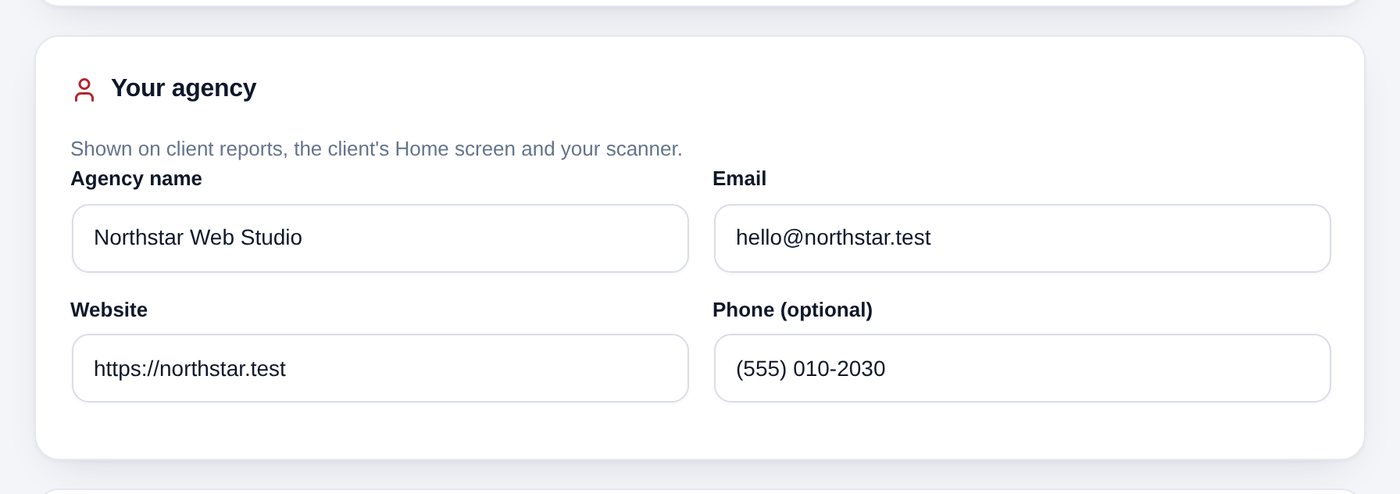
    The Your agency card with name, email, website and phone
  2. Add your brand

    Turn on Show my brand instead of Legal Eagle and add your name, color and logo. Step-by-step with pictures

  3. Set up the monthly report

    In Client reports, type your client's email in Send to, and turn on Email the report every month. See how reports work

  4. Lock the settings

    Turn on client mode so your client can look but not change anything. How client mode works

  5. Press Save changes

    Press Save changes in the bar at the bottom.
First site done! Now save a blueprint, so the next client site takes one minute.

Chapter 2 · 3 minutes

Put your own brand on it

Your name, logo and color in the menu, the dashboard and every report.

White label means your client sees your brand, not ours. Your name and logo replace Legal Eagle in the WordPress menu, on the dashboard, in reports and in the Plugins list.

  1. Turn on your brand

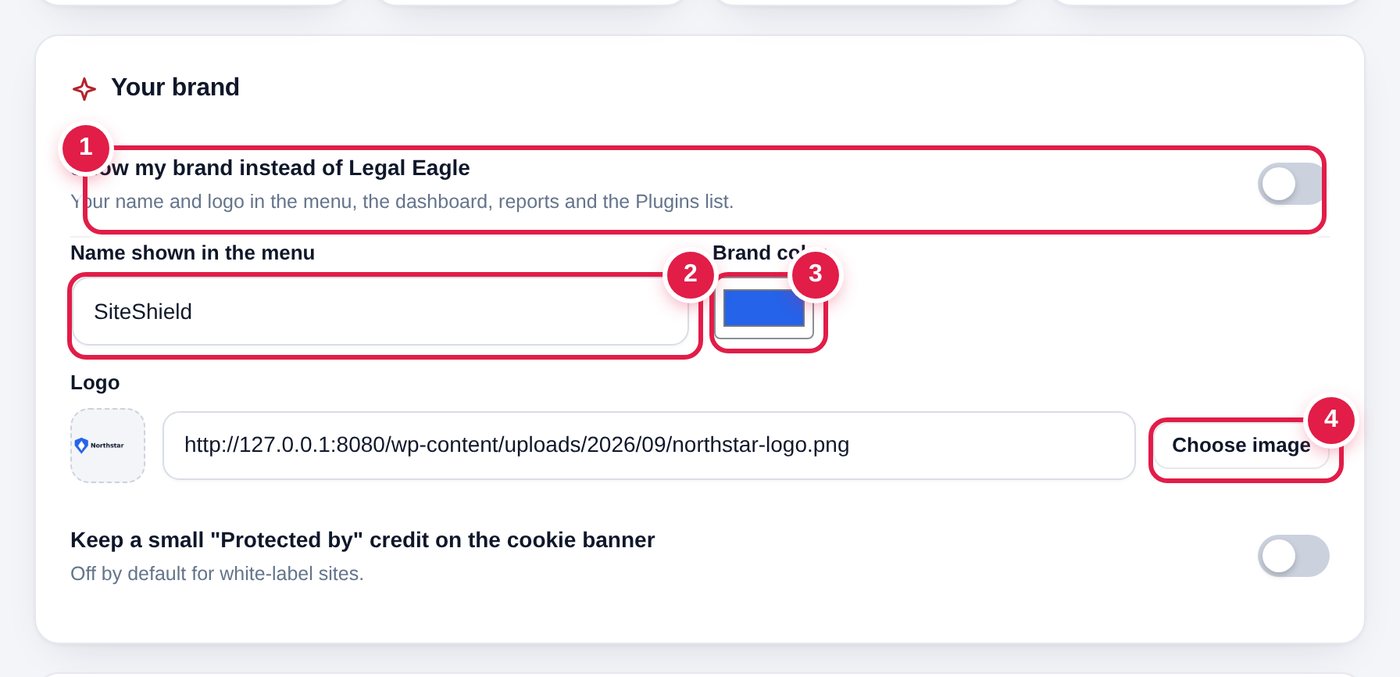
    Click Agency. In Your brand, turn on Show my brand instead of Legal Eagle 1.

    Your brand: the switch, name, color and logo
  2. Type the name to show

    In Name shown in the menu 2, type a short name, like "SiteShield" or "Northstar Legal". Short names fit the menu best.

  3. Pick your color

    Click the Brand color box 3 and pick your color. Buttons and highlights change to it.

  4. Decide on the credit

    Keep a small "Protected by" credit on the cookie banner is off by default on white-label sites. Leave it off to keep the banner clean.

  5. Save and look

    Press Save changes, then reload the page (press F5, or Cmd + R on a Mac). Your name and color are now at the top.

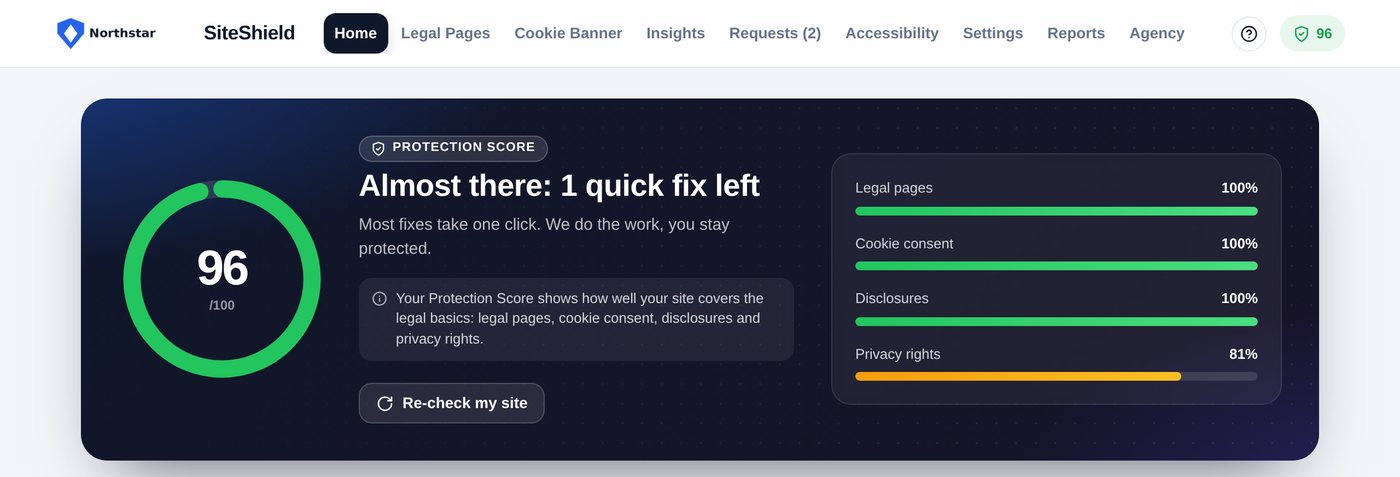
    The dashboard showing the agency’s own name and color
Does my client see "Legal Eagle" anywhere? The menu, dashboard, tabs, reports and emails use your brand. In the Plugins list, WP Legal Eagle shows your name too. Turn on client mode to hide it from clients completely.

Chapter 3 · 5 minutes

Client reports: view, PDF, email and share

Show clients what you did, every month, without lifting a finger.

Clients pay for what they can see. Reports turns the site's protection into a clean report with your brand on it. You can view it, download it as a PDF, email it, or send a private link. It can also email itself every month.

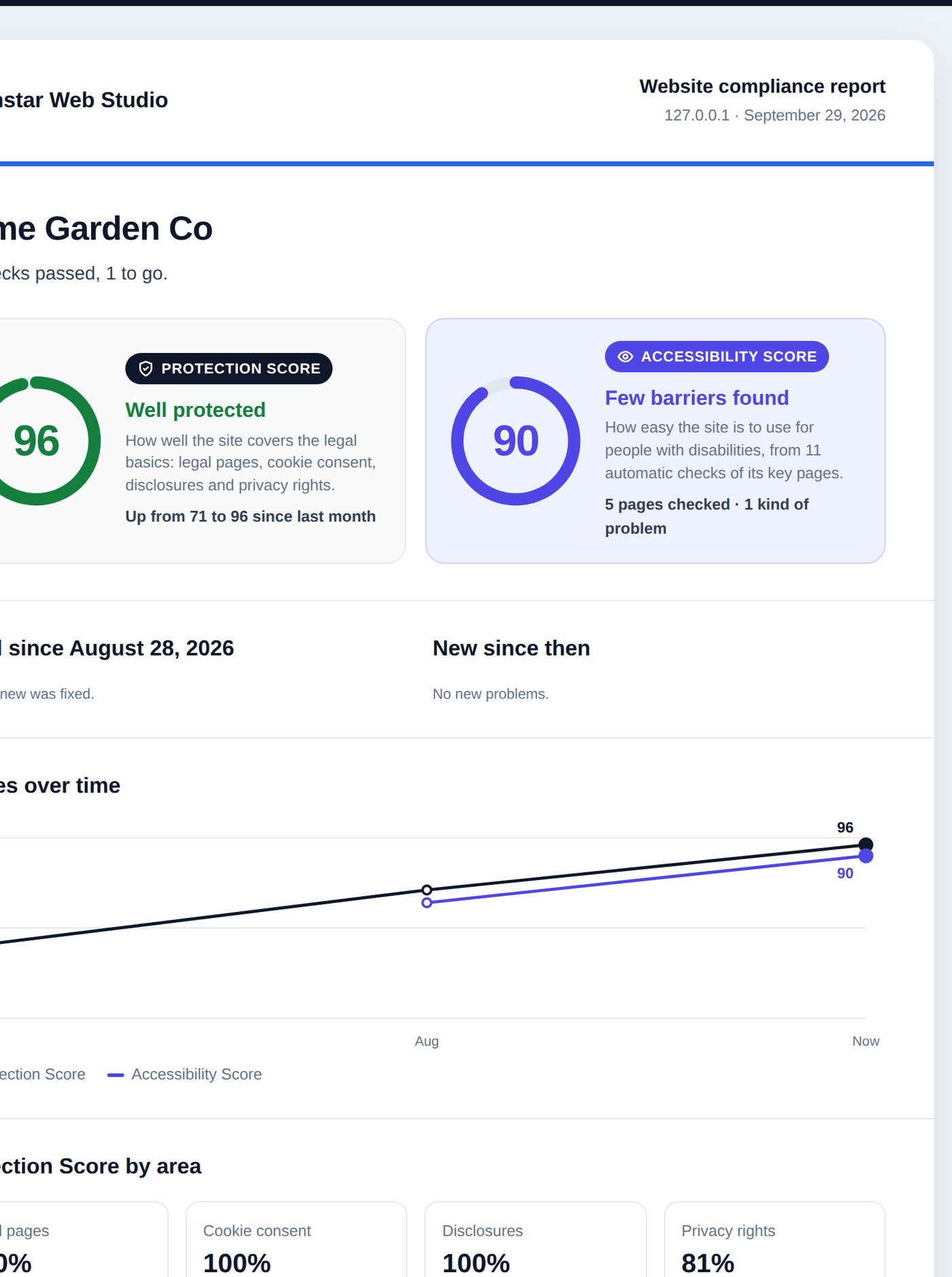
The two scores on every report

The two score cards: Protection Score in dark and Accessibility Score in purple

See today's report

  1. Open Reports

    Click Reports. Today's report appears right on the screen, built from the site as it is right now.

  2. Use the buttons above the report

    The buttons: Download PDF, Open full page, Save a copy and Email it
    • 1
      Download PDF saves the report as a PDF, with your logo, ready to attach or print.
    • 2
      Open full page opens the report on its own, full size.
    • 3
      Save a copy keeps today's report in the list below, so you can compare later.
    • 4
      Email it sends it to your client now. If you haven't added a client email yet, it's sent to you.
  3. Read what's in it

    Every report has the two scores, what got fixed since last month and what's new since then, a chart of scores over time, what's still to do, what's in place, and a list of the legal pages. Your note sits at the end, under Next steps from your agency.

    A client report: the scores, fixed and new since last month, and the chart

Look back at earlier months

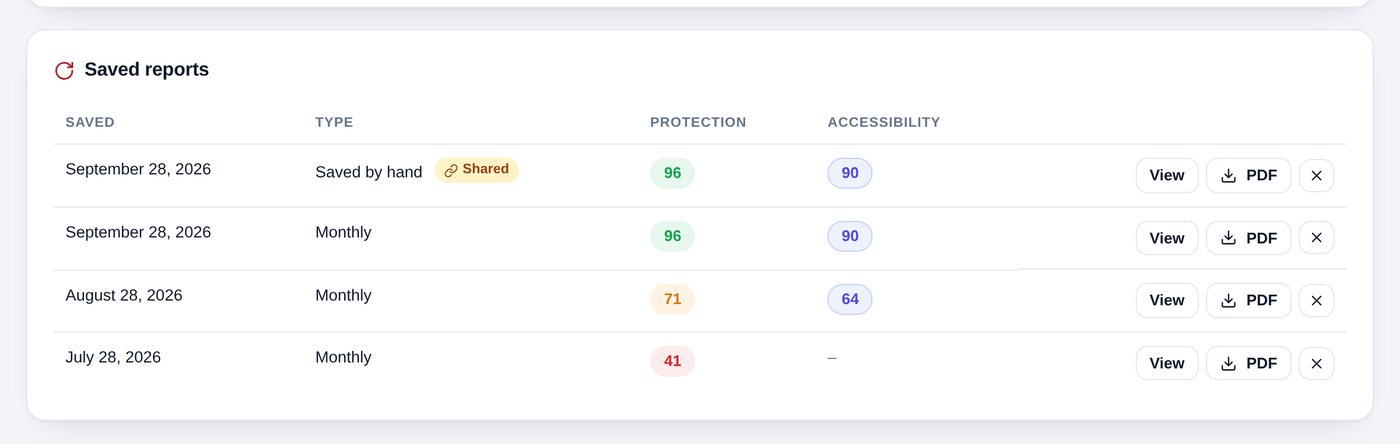
Scroll down to Saved reports. A report is saved automatically each month, and every time you press Save a copy. Each row shows both scores.

The Saved reports list with View, PDF and delete buttons

Press View to open an old report, PDF to download it, or the × to delete it. The last 36 reports are kept.

Send a private link (no login needed)

  1. Open a saved report

    Press View on a report in Saved reports. (Only saved reports can be shared. Press Save a copy first for today's.)

  2. Press Get a share link

    Press Get a share link. A box appears with the link. Press Copy and paste it into an email or a chat.

    The share box with the private link and the Copy button
  3. Stop sharing whenever you like

    The link works for 30 days, for anyone who has it. They can read the report and download the PDF. To turn it off early, press Stop sharing.

Email the report every month, automatically

  1. Open the Agency tab

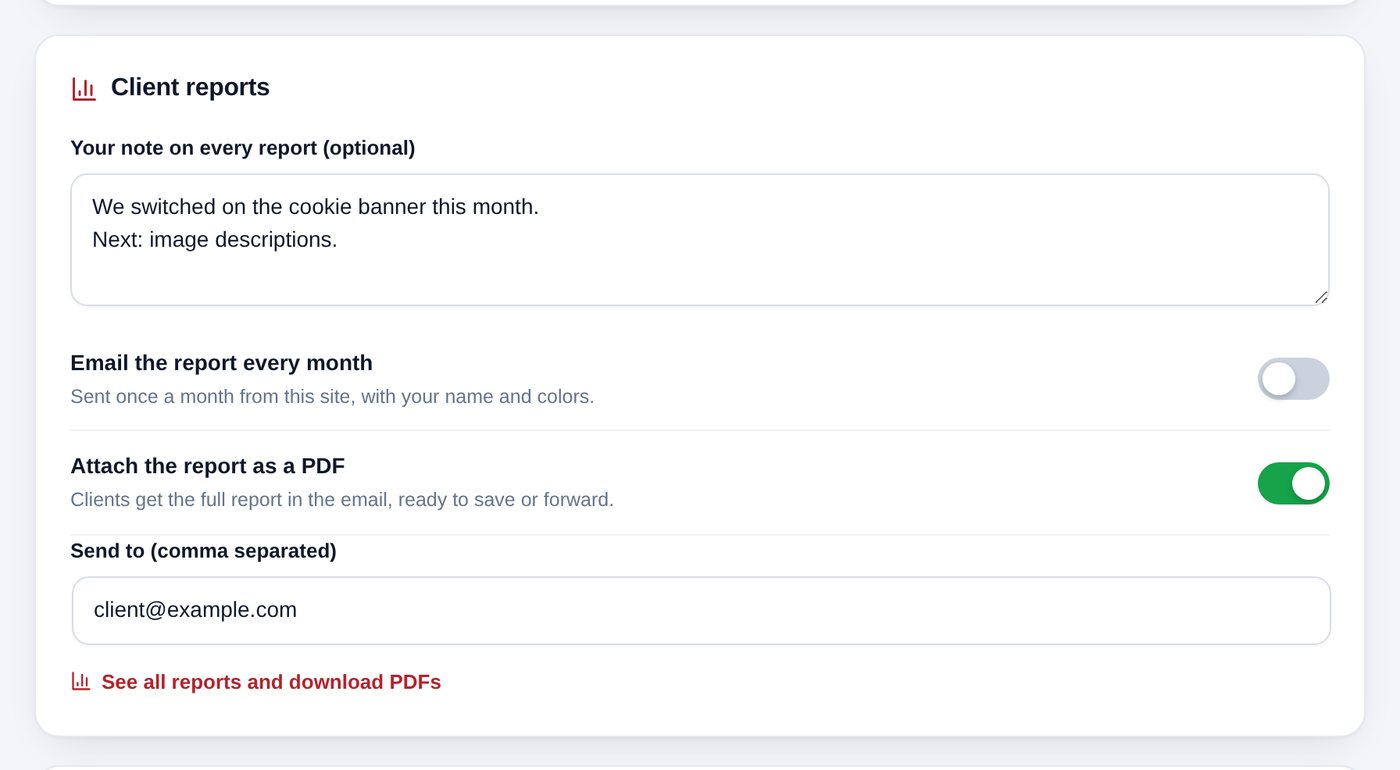
    Click Agency and scroll to Client reports.

    Client reports settings: your note, monthly email, PDF attachment and who to send to
  2. Write your note (optional)

    In Your note on every report, write what you did and what's next, like "We switched on the cookie banner this month." Short and friendly works best.

  3. Turn on the monthly email

    Turn on Email the report every month. Leave Attach the report as a PDF on, so clients get a file they can save or forward.

  4. Add who gets it

    In Send to, type your client's email. For more than one person, put a comma between them. Then press Save changes.

Test it firstPress Email it on Reports to send one now. If it doesn't arrive, check the spam folder. If it's not there either, your host may not send email well: install a free email plugin like WP Mail SMTP and connect it to your email service.
That's it. Every month your client gets a branded report showing what you fixed. It's the easiest way to show your value.

Chapter 4 · 3 minutes

Hand the site to your client

Let clients see their score and reports without changing any settings.

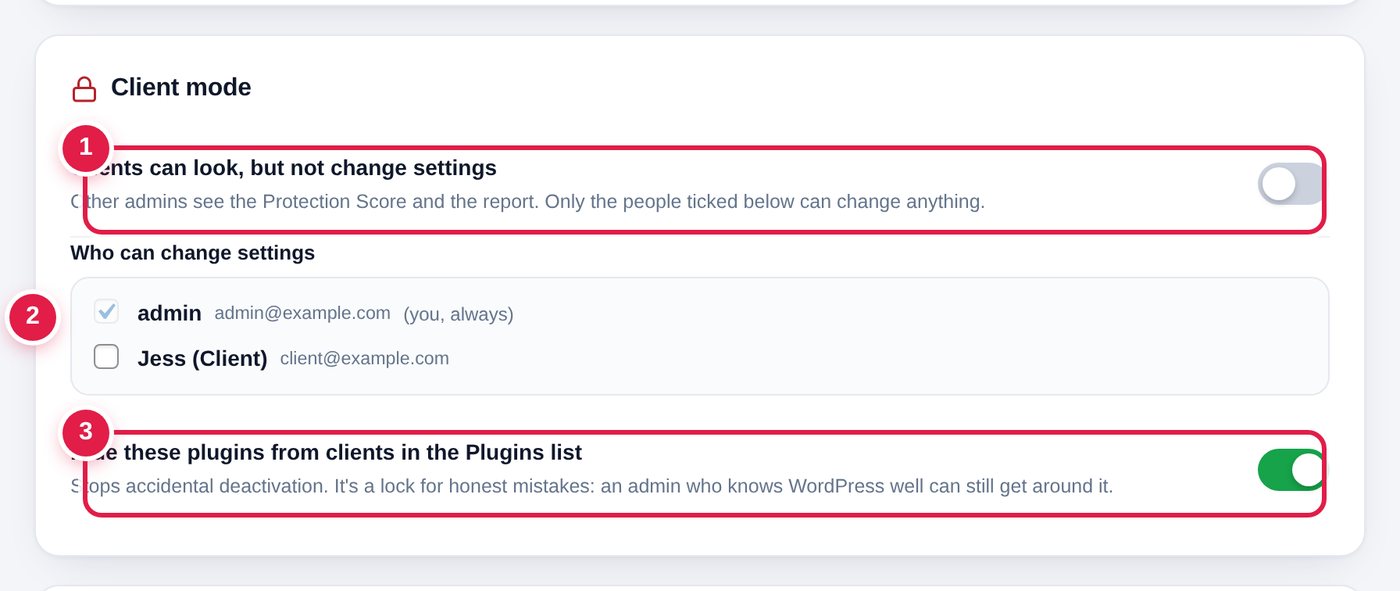
Your client owns the website, so they are often an admin too. Client mode lets them see their score and reports, while only you can change the settings. No more "I clicked something and the banner disappeared".

  1. Turn on client mode

    Click Agency and scroll to Client mode. Turn on Clients can look, but not change settings 1.

    Client mode: the switch, who can change settings, and hide from clients
  2. Tick who can change settings

    Under Who can change settings 2, you are always ticked. Tick anyone else on your team who needs to make changes. Leave your client unticked.

  3. Hide WP Legal Eagle from your client

    Leave Hide from clients in the Plugins list 3 on. Your client won't see WP Legal Eagle in the Plugins list, so they can't switch it off by mistake.

  4. Save

    Press Save changes.

What your client sees

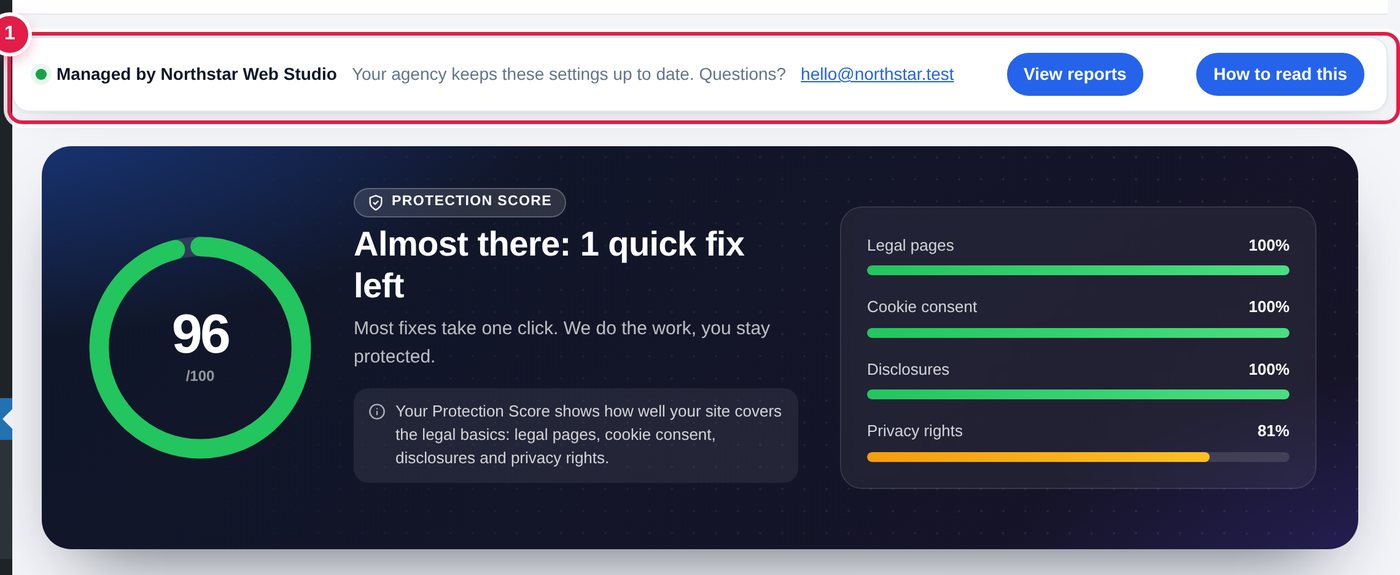
When your client logs in and opens the menu item, they see just three things:

What a client sees: their score and the “Managed by” bar

They can't press Fix it, change the banner, or open any settings. If they try a settings link, they're sent back to Home.

Want to see it yourself?Make a test user in Users → Add New User with the role Administrator. Log in as that user in a private window.
Good to knowClient mode is a lock for honest mistakes. An admin who knows WordPress well could still get around it, for example by deleting the plugin files.

Chapter 5 · 3 minutes

Set up the next site in one minute

Save this site's setup as a file and load it on the next client site.

A blueprint is a small file with this site's whole setup: banner, features, pages, Pro options and your brand. Load it on the next client site and it's set up in a minute.

Part 1: Save a blueprint from a finished site

  1. Open the Agency tab on a site you've already set up

    Click Agency and scroll to Blueprints (or click the Blueprints tile at the top).

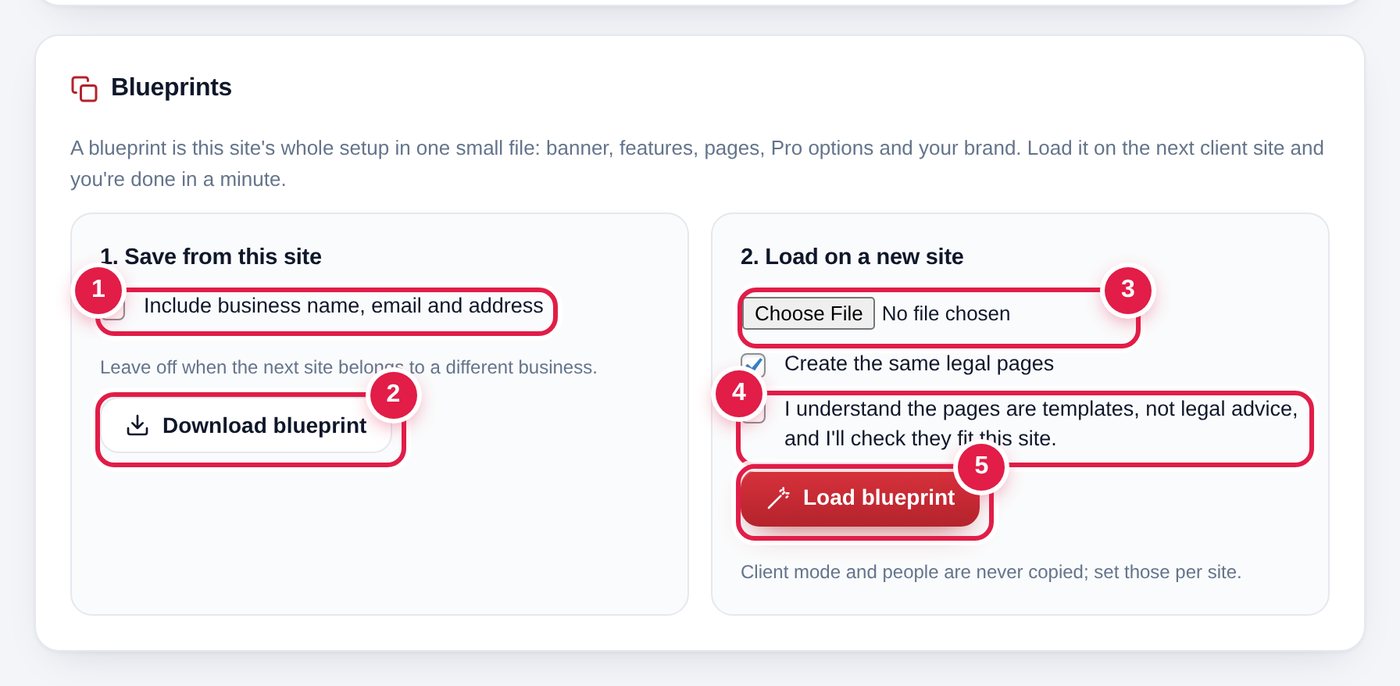
    Blueprints: save from this site, and load on a new site
  2. Choose whether to include the business details

    Under 1. Save from this site, leave Include business name, email and address 1 off when the next site belongs to a different business (that's almost always).

  3. Download it

    Press Download blueprint 2. A small file called something like legal-blueprint-yoursite.json is saved to your computer. Keep it somewhere safe; you can use it again and again.

Part 2: Load it on a new client site

  1. Install the plugin on the new site

    Install and activate Legal Eagle on the new site, then open License and paste your license key, like you did on the first one. Pro and Agency are built in: there's nothing else to install.

  2. Choose the file

    On the new site, open Agency and scroll to 2. Load on a new site. Press Choose File 3 and pick your blueprint file.

  3. Tick the boxes

    Leave Create the same legal pages ticked, so the pages are made for you. Tick I understand the pages are templates… 4.

  4. Press Load blueprint

    Press Load blueprint 5. You'll see a message saying it worked and how many pages were created.

  5. Finish the client's details

    Open Settings and type this client's business name and email. Then, on Agency, add the client's email for reports and turn on client mode. Press Re-check my site on Home to finish.

What's never copied? Client mode, the list of people who can change settings, the client's report email address and your report note. Those belong to one client, so you set them on each site.
Done in a minute. Do this on every new client site and they'll all be set up the same way.

Chapter 6 · 4 minutes

Get leads with the free site checker

Put a free checker on your own website. Visitors check their site and leave their email.

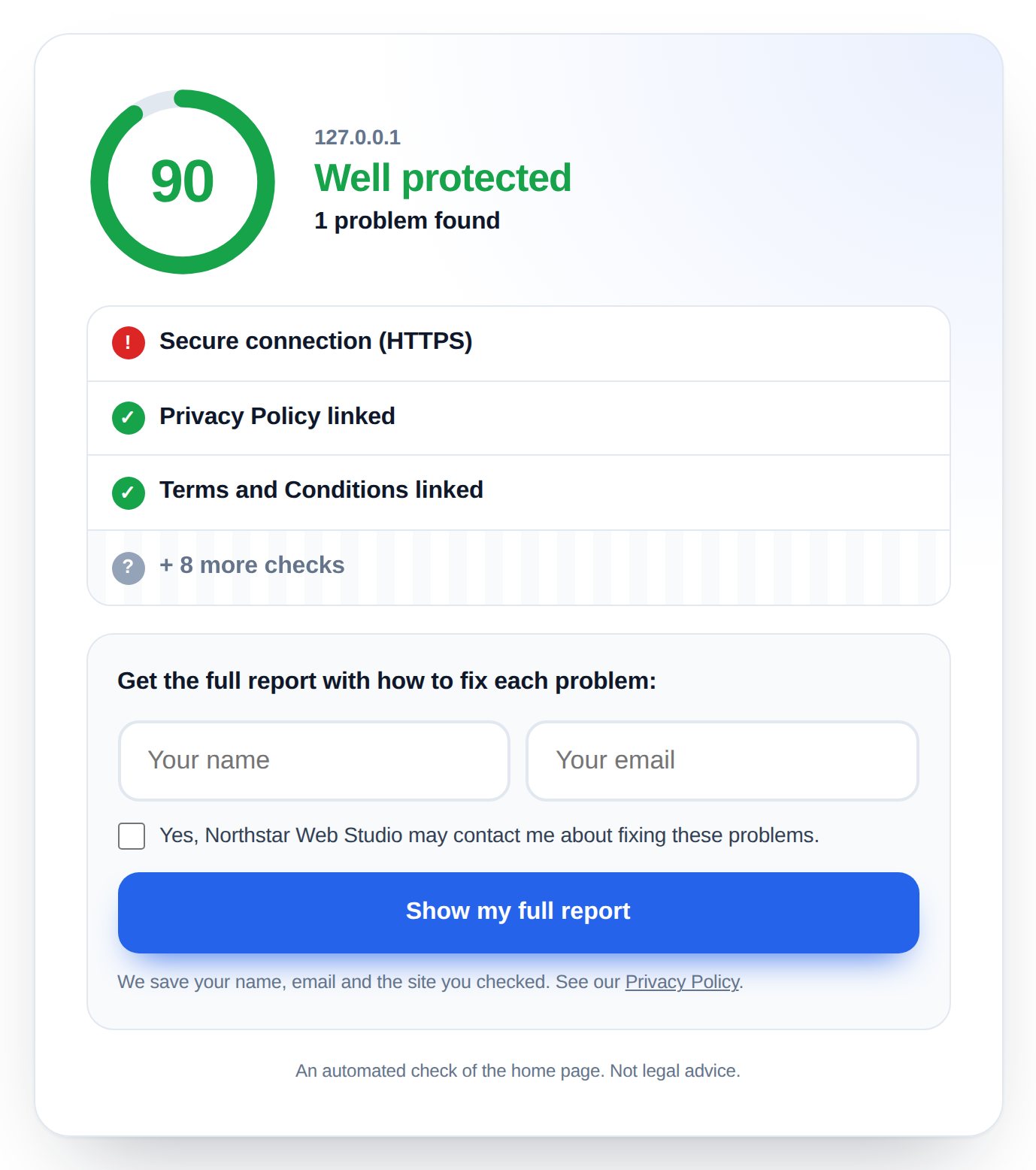
Put a free "Is your website breaking privacy laws?" checker on your own agency website. Visitors type their address, see a score, and leave their name and email to see every problem. You get a warm lead who already knows they need help.

  1. Copy the shortcode

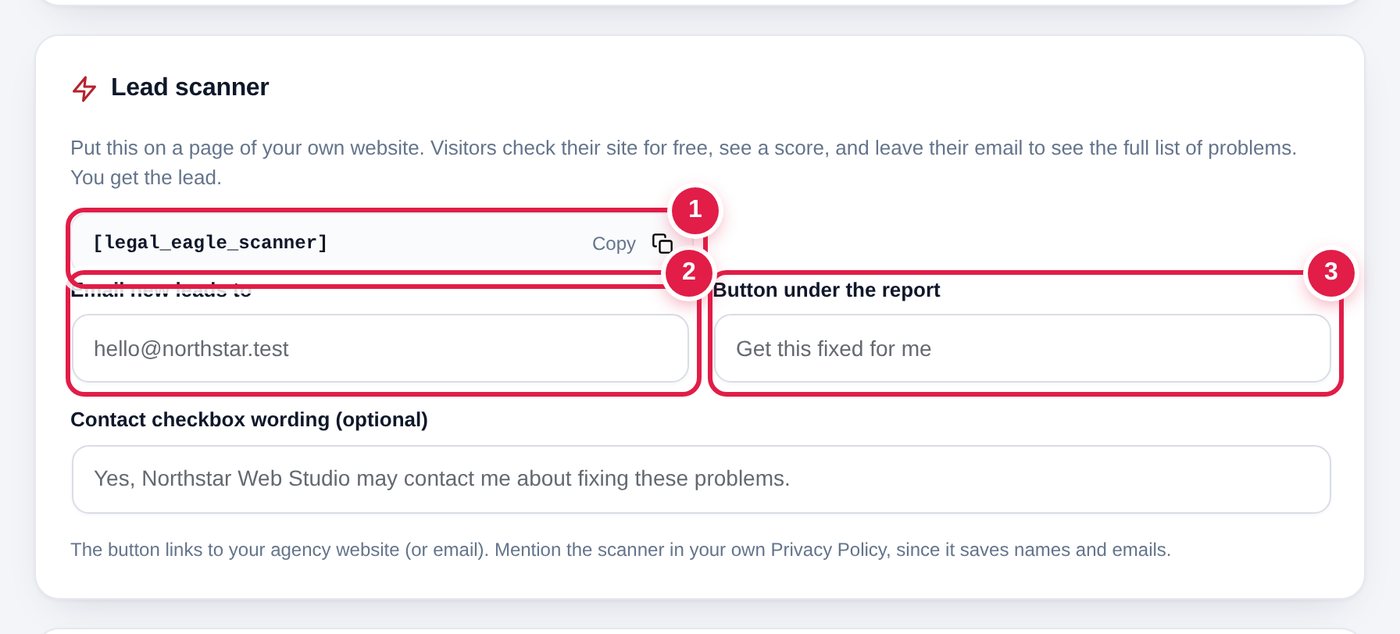
    On your agency's own website (not a client's), open Agency and scroll to Lead scanner. Press Copy 1 next to [legal_eagle_scanner].

    The Lead scanner card with the shortcode and settings
  2. Fill in the three boxes

    • Email new leads to 2: where you want an email for each new lead.
    • Button under the report 3: the words on the button visitors see after the check, like "Get this fixed for me". It links to your agency website.
    • Contact checkbox wording: the "you may contact me" box. You can leave it as it is.

    Press Save changes.

  3. Make a page for it

    Go to Pages → Add New Page. Give it a title, like "Free Website Check". Add a Shortcode block, paste [legal_eagle_scanner] and press Publish.

    Want different words? Use [legal_eagle_scanner title="Free privacy check" button="Check my site"].

  4. Try it

    Open the page and check any website. Visitors see a score and the first few checks. To see the full list, they fill in their name and email.

    The free checker on a web page, with a score and the form to see all problems
  5. See your leads

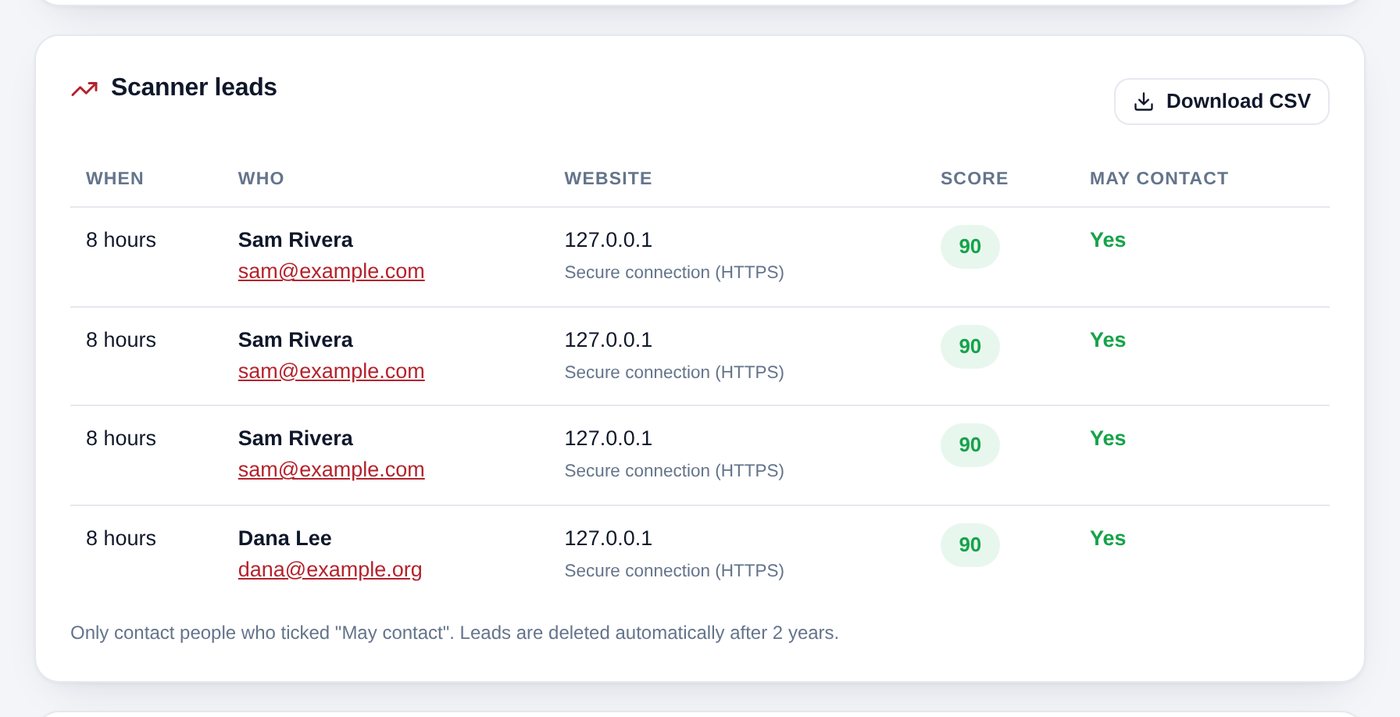
    Back on Agency, Scanner leads lists everyone: when, who, which website, their score, and whether they said you may contact them. Press Download CSV to open them in Excel or your email tool.

    The Scanner leads table
Two rules
  • Only email people who ticked May contact.
  • Mention the checker in your own Privacy Policy, because it saves names and emails. Leads are deleted by themselves after 2 years.

Chapter 7 · 2 minutes

Your website dashboard, explained

What your two scores mean, and how to read and download your report.

This page explains what you see on your website's dashboard. You can look at everything, and your web team takes care of the settings for you.

Your two scores

Your site has two separate scores. They measure different things.

ScoreWhat it measures
Protection Score
dark, with a shield
How well your site covers the legal basics: legal pages, cookie consent, disclosures and privacy rights.
Accessibility Score
purple, with an eye
How easy your site is to use for people with disabilities, for example people using a screen reader. 90 or more adds 10 points to your Protection Score.

For both scores, 90 to 100 (green) is great, 60 to 89 (orange) means a few things are missing, and under 60 (red) needs attention.

Your Home screen

Home shows your Protection Score, the four areas it's made of, and anything that still needs doing. The bar at the top shows who manages your site and how to reach them.

The Home screen with the score and the “Managed by” bar

Your reports

  1. Open Reports

    Click Reports. Today's report is shown straight away.

  2. Download a PDF

    Press Download PDF to save the report, to print it or to send it to someone.

  3. Look at earlier months

    Scroll down to Saved reports and press View or PDF on any month.

How to read a report

Have a question?Use the Still stuck? box on the list of guides, or the email address in the bar on your Home screen.